
Your WordPress site probably has dozens or hundreds of pages. But if they're not connected properly, Google might never find half of them. That's where internal linking comes in.
Internal linking isn't just about SEO anymore. Google's systems in 2026 use structured internal pathways to understand which pages matter most on your site, how topics relate to each other, and where to send searchers. A well-planned internal linking strategy WordPress site owners implement can dramatically improve crawl efficiency, topic authority, and user engagement.
What Internal Linking Actually Means
Internal links are hyperlinks that point from one page on your domain to another page on the same domain. When you link from your homepage to your about page, that's an internal link. When you reference an older blog post within a new article, same thing.
These links serve three main purposes. First, they help visitors navigate your site without getting lost. Second, they tell search engines which pages are important and how they relate to each other. Third, they distribute ranking power throughout your site.
Think of your website like a city. Internal links are the roads connecting different neighborhoods. Without them, some areas become isolated and forgotten.

How Internal Links Impact WordPress SEO in 2026
Google's crawlers follow links to discover content. If a page has no internal links pointing to it, crawlers might never find it. Even if they do, they'll assume it's not important.
Modern search algorithms also use internal linking patterns to establish topical authority. When you consistently link related articles together, you're signaling to Google that you have depth of knowledge on that subject. This clustering approach has become increasingly important as search engines try to understand context rather than just keywords.
Internal links also affect how ranking power flows through your site. Pages with more internal links pointing to them typically rank better than isolated pages with similar content quality. You can strategically direct this power toward your most important pages.
Internal vs. External Links
External links point to other websites. Internal links stay within your domain. Both matter for SEO, but you have complete control over internal links.
External links can help or hurt depending on where they point. Internal links almost always help when done correctly. You don't need anyone's permission to add them, and you can change them whenever you want.
Understanding Internal Linking Fundamentals for WordPress
Types of Internal Links in WordPress
WordPress sites use several types of internal links, each serving different purposes:
- Navigational links appear in menus, headers, and footers. They help visitors move between major sections of your site.
- Contextual links sit within your content, connecting related articles and resources. These carry the most SEO weight.
- Sidebar links often show recent posts, popular content, or category listings.
- Footer links typically point to important pages like privacy policies, contact forms, and site maps.
Contextual links matter most because they're surrounded by relevant content. When you link to a page about email marketing from within an article about content strategy, that connection carries meaning.
How WordPress Handles Internal Links by Default
WordPress makes internal linking fairly straightforward. The block editor includes a link button that searches your existing content as you type. You can link to any published post or page without leaving the editor.
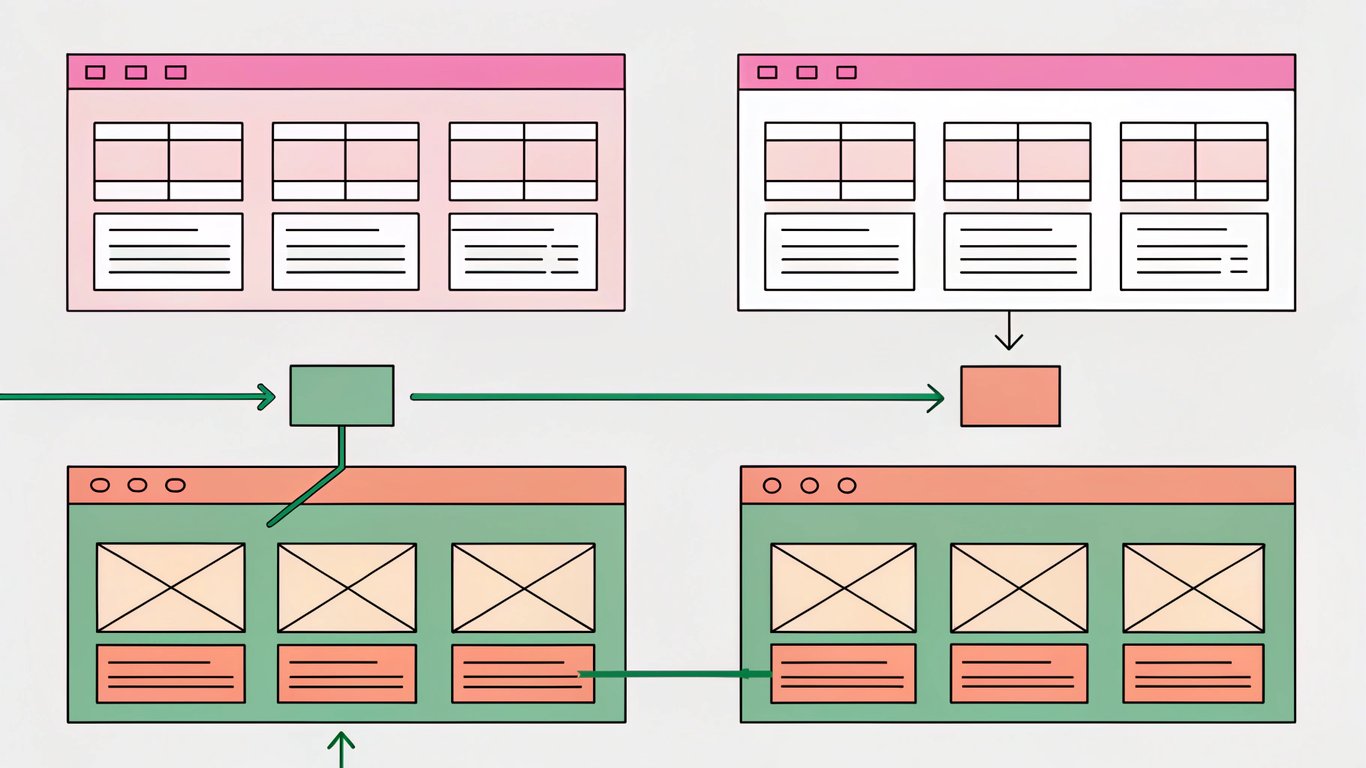
Your permalink structure affects how these links work. WordPress lets you choose between several formats, but most SEO experts recommend using post names rather than dates or IDs. This creates cleaner, more descriptive URLs that work better for both users and search engines.
WordPress also automatically generates some internal links through features like category archives, tag pages, and navigation menus. These provide basic structure, but they're not enough on their own.
Link Equity and PageRank Flow
Every page on your site has a certain amount of ranking power. When you link from one page to another, you pass some of that power along. This concept, originally called PageRank, still influences how search engines evaluate pages.
Your homepage typically has the most link equity because external sites often link to it. By linking from your homepage to important internal pages, you share that power. Those pages can then pass it along to other pages, creating a distribution network.
The number of links on a page matters too. If your homepage has 100 links, each one passes less equity than if it only had 10 links. This is why you should be selective about what you link from high-authority pages.
Anchor Text Best Practices
Anchor text is the clickable words in a link. It tells both users and search engines what to expect on the destination page.

Good anchor text is descriptive and natural. Instead of "click here," use something like "our guide to WordPress security." This gives context and includes relevant keywords without feeling forced.
Avoid over-optimization. If every link to a page uses the exact same keyword phrase, it looks manipulative. Vary your anchor text while keeping it relevant. Sometimes use the exact keyword, sometimes use variations, and sometimes use more general phrases.
Planning Your WordPress Internal Linking Strategy
Step 1: Audit Your Existing Content
Before adding new links, you need to know what you're working with. Export a list of all your published posts and pages. Most SEO plugins can do this, or you can use Google Search Console.
Look for orphaned pages with no internal links pointing to them. These are invisible to most visitors and probably aren't ranking well. Also identify your highest-performing content based on traffic and conversions.
Check for broken internal links while you're at it. Dead links frustrate users and waste link equity.
Step 2: Identify Pillar Pages and Topic Clusters
The hub-and-spoke model works well for internal linking. You create comprehensive pillar pages covering broad topics, then link them to more specific cluster content.
For example, a pillar page about "WordPress SEO" might link to cluster pages about "WordPress permalinks," "XML sitemaps," and "meta descriptions." Those cluster pages link back to the pillar and to each other when relevant.
This structure helps search engines understand your topical expertise. It also makes it easier for visitors to find related information.
Step 3: Map Your Site Hierarchy
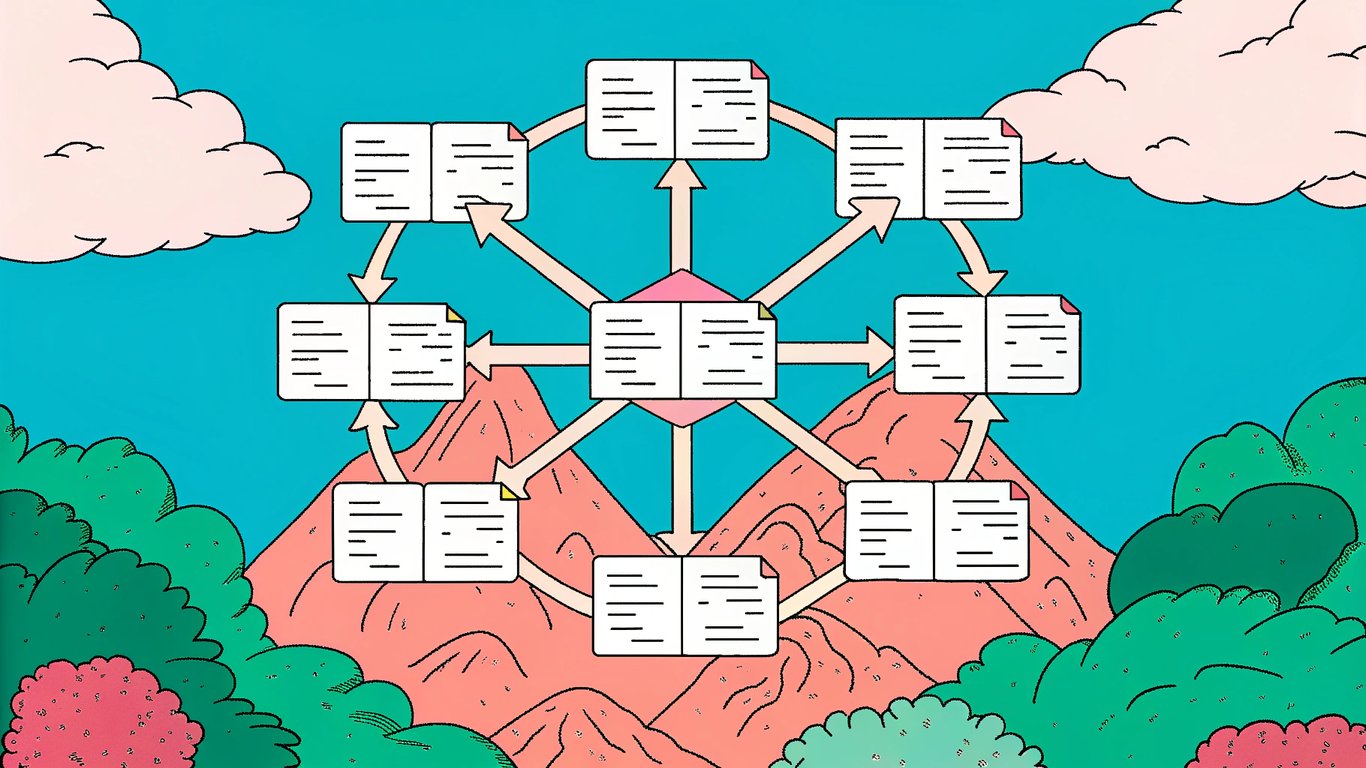
Sketch out how your pages should connect. Your homepage sits at the top, linking to main category pages. Those link to subcategories or individual posts. Everything should connect logically.
You don't need fancy software for this. A simple spreadsheet or even a hand-drawn diagram works fine. The goal is to visualize the relationships between pages.
Step 4: Determine Optimal Link Depth
Link depth measures how many clicks it takes to reach a page from your homepage. The three-click rule suggests that important pages should be accessible within three clicks.
Pages buried six or seven clicks deep probably won't rank well. They're too hard to find. If you have important content that deep in your site structure, add some contextual links from higher-level pages.
Step 5: Set Goals and KPIs
What do you want your internal linking strategy to accomplish? Common goals include reducing bounce rate, increasing time on site, improving rankings for specific pages, and boosting conversions.
Pick metrics you can actually measure. Track them before implementing changes, then monitor how they shift over time.
Implementing Your Internal Linking Strategy
Adding Links in the WordPress Editor
The Gutenberg block editor makes manual linking simple. Highlight the text you want to turn into a link, click the link icon, and start typing. WordPress will search your content and show matching results.
You can also paste a URL directly if you know exactly where you want to link. The classic editor works similarly, though the interface looks different.
Creating Contextual Links Within Content
The best internal links feel natural. When you mention a topic you've covered elsewhere, link to it. Don't force links where they don't belong.
Aim for 2-5 contextual links per 1,000 words, depending on how much related content you have. More isn't always better. Too many links can overwhelm readers and dilute the value of each link.
Building Effective Navigation Menus
Your header menu should link to your most important pages. Keep it focused. Seven items or fewer works best for usability.
Footer menus can be more extensive. They're good places to link to legal pages, contact information, and secondary content that doesn't fit in the main navigation.
Using Related Posts Sections
Related post widgets at the end of articles encourage visitors to keep reading. They also create automatic internal links between similar content.
Many WordPress themes include this feature. If yours doesn't, plugins can add it. Just make sure the recommendations are actually relevant, not just your most recent posts.
Adding Breadcrumb Navigation
Breadcrumbs show the path from your homepage to the current page. They help visitors understand where they are in your site structure and provide easy navigation back to parent pages.
Search engines like breadcrumbs too. They can display them in search results, making your listings more informative. Most SEO plugins include breadcrumb functionality.
Creating Content Hubs
Content hubs are comprehensive landing pages that link to all your content on a specific topic. They work well for organizing large amounts of related material.
A hub page might include brief descriptions of each linked article, making it useful for visitors while creating strong internal linking patterns.
Best WordPress Plugins for Internal Linking
All in One SEO Link Assistant
All in One SEO includes a Link Assistant feature that suggests internal linking opportunities. It scans your content and recommends relevant pages to link together based on shared keywords and topics.
The plugin also identifies orphaned content and shows you which pages need more internal links. It's particularly helpful for larger sites where manually tracking linking opportunities becomes difficult.
Yoast SEO Internal Linking Tools
Yoast SEO offers internal linking suggestions in its premium version. It analyzes your content and recommends related posts to link to while you write.
Yoast also detects orphaned content and provides reports on your internal linking structure. The plugin integrates these features directly into the WordPress editor.
Rank Math SEO
Rank Math provides link suggestions based on your content's focus keywords. It shows you existing posts that might be relevant to link to and tracks how many internal links each page has.
The plugin's SEO analysis includes checks for internal linking, alerting you when posts have too few links or when important pages aren't being linked to enough.
Other Helpful Plugins
Link Whisper uses AI to suggest internal linking opportunities. It can automatically add links to existing content based on relevance. Internal Links Manager helps you track and manage all your internal links from a central dashboard.
SEO Smart Links can automatically link keywords to specified pages, though this approach requires careful setup to avoid over-optimization.
Choosing the Right Plugin
For small sites with under 50 pages, manual linking probably works fine. You don't need a plugin. For medium sites with 50-500 pages, a plugin like Yoast or Rank Math can help you spot opportunities you'd otherwise miss.
Large sites with hundreds or thousands of pages benefit most from dedicated internal linking tools. The time saved and opportunities discovered usually justify the cost.
Advanced Internal Linking Techniques
Using MediaWiki Syntax for Faster Linking
Some WordPress users adopt MediaWiki-style shortcuts for internal linking. Instead of using the link button, you can type double brackets around a page title, and a plugin converts it to a proper link.
This speeds up the writing process if you're adding many internal links. It's particularly useful for content teams who need consistent linking practices.
Implementing Silo Structure
Silo structure takes the hub-and-spoke model further. You create distinct topic silos that rarely link to each other. Within each silo, pages link extensively to related content.
This approach can strengthen topical authority by showing search engines you have deep expertise in specific areas. It works well for sites covering multiple distinct topics.
Strategic Linking to Conversion Pages
Your product pages, service pages, and landing pages probably matter most for your business. Make sure they receive plenty of internal links from relevant content.
Blog posts about topics related to your products should link to those product pages. This passes link equity and guides interested readers toward conversion opportunities.
Updating Links During Site Changes
When you change URLs, move content, or restructure your site, update your internal links. Broken internal links waste link equity and frustrate visitors.
Use 301 redirects for changed URLs, but also update the actual links when possible. Redirects work, but direct links are cleaner and faster.
Balancing Link Distribution
Some pages naturally attract more internal links than others. That's fine. But if one page has 200 internal links and another important page has 2, you might want to rebalance.
Spread links across your important content. Don't let valuable pages languish with minimal internal linking just because they're older or less prominent.
Monitoring and Optimizing Your Internal Links
Tracking Internal Links in Google Analytics
Google Analytics 4 can track internal link clicks if you set up enhanced measurement. This shows you which links people actually click and which get ignored.
Use this data to optimize link placement and anchor text. If nobody clicks a link, it's probably not useful or not visible enough.
Using Google Search Console
Search Console shows you which pages have the most internal links and which have the fewest. This helps you identify pages that need more links and pages that might be over-linked.
The Links report breaks down both internal and external links, giving you a clear picture of your linking structure.
Conducting Regular Link Audits
Schedule quarterly or semi-annual internal link audits. Check for broken links, orphaned pages, and new linking opportunities created by recent content.
As your site grows, your internal linking needs change. Regular audits keep your strategy current.
Fixing Broken Internal Links
Broken link checker plugins scan your site for dead internal links. When they find them, you can update the links or remove them.
Don't let broken links accumulate. They create a poor user experience and waste the link equity you've built.
Common Internal Linking Mistakes to Avoid
Over-Optimization and Keyword Stuffing
Using the exact same keyword-rich anchor text for every link to a page looks manipulative. Vary your anchor text naturally. Sometimes use the keyword, sometimes use related terms, sometimes use more general phrases.
Too Many or Too Few Links
A page with 50 internal links overwhelms readers. A 2,000-word article with zero internal links wastes opportunities. Find a balance based on your content length and available related content.
Linking to Irrelevant Pages
Every internal link should add value. Don't link to pages just to increase link counts. Make sure the destination page actually relates to the context where you're linking from.
Ignoring Orphaned Pages
Pages with no internal links pointing to them are nearly invisible. They won't rank well and visitors won't find them. Either add links to these pages or consider whether they should exist at all.
Using Generic Anchor Text
"Click here" and "read more" tell users and search engines nothing about the destination page. Use descriptive anchor text that explains what readers will find when they click.
Building a Sustainable Internal Linking Strategy
Internal linking isn't a one-time project. It's an ongoing process that evolves with your site. The good news is that once you establish good habits, maintaining your internal linking strategy WordPress sites need becomes almost automatic.
Start by implementing the basics. Audit your content, identify your pillar pages, and add contextual links where they make sense. You don't need to perfect everything immediately.
Quick Implementation Checklist
- Export a complete list of your published content
- Identify orphaned pages with no internal links
- Choose 3-5 pillar pages for your main topics
- Add 2-5 contextual links to each new piece of content
- Update your navigation menus to reflect site priorities
- Install a plugin to help track linking opportunities
- Set up breadcrumb navigation if you don't have it
- Schedule quarterly link audits in your calendar
- Track key metrics like bounce rate and time on site
- Review and update old content to add new internal links
Making Internal Linking Part of Your Workflow
The easiest way to maintain good internal linking is to build it into your content creation process. Before publishing any new post, ask yourself which existing pages it relates to. Add links to those pages. Then think about which older posts should link to this new content and update them.
This takes an extra 10 minutes per post, but it prevents the backlog of linking work that many sites face. Your internal linking stays current instead of becoming a massive project you keep postponing.
If you work with a content team, include internal linking in your editorial guidelines. Make it a standard step in the publishing checklist, not an afterthought. Strong internal linking is fundamental to technical SEO—and it's especially valuable when scaling content with AI autoblogging.