

Your WordPress site's speed isn't just about keeping visitors happy anymore. It's about survival in search rankings, conversion rates, and user retention. A slow site in 2026 is basically invisible.
I've tested dozens of WordPress sites over the years, and the difference between a cached and uncached site is staggering. We're talking about load times dropping from 4-5 seconds down to under 1 second. That's not just a nice improvement; it's the difference between someone staying on your site or hitting the back button.
What Is WordPress Caching and How Does It Work?
Think of caching like meal prepping for your website. Instead of cooking (generating) a fresh page every single time someone visits, you prepare it once and serve the ready-made version to everyone. Your server doesn't have to run through all the PHP code, database queries, and WordPress processes each time.

When someone visits your WordPress site without caching, the server has to process PHP files, query the database, and assemble everything into HTML. With caching enabled, the plugin saves that finished HTML file and serves it directly. The server barely breaks a sweat.
There are different types of caching working together: page caching stores complete HTML pages, browser caching tells visitors' browsers to save certain files locally, and object caching stores database query results. The best caching plugins for WordPress handle multiple types simultaneously.
The Impact of Site Speed on SEO and User Experience
Google's Core Web Vitals have changed the game completely. These metrics measure real user experiences, and they directly affect your search rankings. A slow site doesn't just frustrate users; it actively pushes you down in search results.
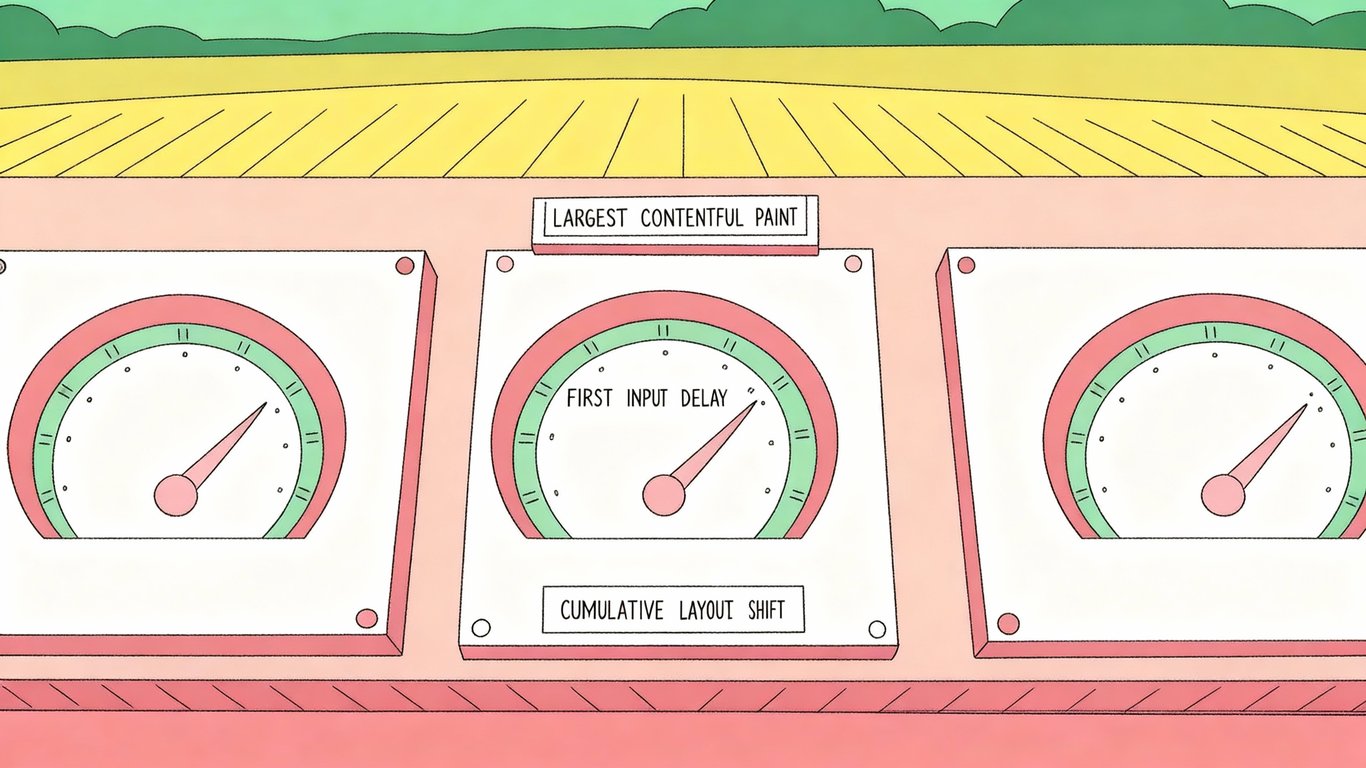
The three main Core Web Vitals are Largest Contentful Paint (how quickly your main content loads), First Input Delay (how fast your site responds to interactions), and Cumulative Layout Shift (how stable your page is while loading). Caching plugins help with all three, especially LCP.
But here's what really matters: bounce rates. Studies consistently show that pages loading in 1-2 seconds have much lower bounce rates than those taking 3+ seconds. Every second of delay can cost you conversions, email signups, and sales. It's not theoretical; it's measurable revenue.
How We Selected the Best Caching Plugins for WordPress
I didn't just compile a list based on popularity. Each plugin here was evaluated on actual performance improvements, ease of configuration, feature completeness, and real-world compatibility with different hosting environments.
The evaluation focused on several key areas: how much each plugin actually improved Core Web Vitals scores, whether the interface made sense for non-technical users, compatibility with popular themes and plugins, and whether premium versions justified their cost. Some plugins look great on paper but cause conflicts or require extensive tweaking.
Top 10 Best Caching Plugins for WordPress in 2026
1. FlyingPress - Best Premium All-in-One Performance Plugin
FlyingPress has become the go-to choice for WordPress users who are serious about Core Web Vitals optimization. It's not just a caching plugin; it's a complete performance suite that addresses every aspect of site speed.
What sets FlyingPress apart is its focus on the metrics that actually matter. The plugin automatically preloads LCP images, hosts fonts locally to eliminate external requests, and integrates with FlyingCDN (which runs on Cloudflare Enterprise). These aren't just buzzwords; they're features that directly improve your Core Web Vitals scores.
The plugin works best on Nginx and Apache servers. It includes advanced features like unused CSS removal, JavaScript deferral, and database optimization. The interface is surprisingly clean for how powerful it is.
Best for: Performance-focused sites, businesses willing to invest in speed, sites targeting perfect Core Web Vitals scores.
2. LiteSpeed Cache - Best Free Plugin for LiteSpeed Servers
If you're on LiteSpeed hosting, this is your plugin. Period. LiteSpeed Cache leverages server-level caching that other plugins simply can't match because it's built specifically for LiteSpeed servers.
The plugin integrates with QUIC.cloud CDN, includes image optimization with WebP conversion, and offers object caching without needing Redis or Memcached. It's completely free, which seems almost unfair given how feature-rich it is.
Server-level caching means the cache is handled before WordPress even loads, making it faster than plugin-level alternatives. The downside? It only works on LiteSpeed servers. If you're on Apache or Nginx, you'll need a different solution.
Best for: Anyone on LiteSpeed hosting, budget-conscious users wanting premium features, sites needing powerful free optimization.
3. WP Rocket - Best User-Friendly Premium Option
WP Rocket has maintained its reputation as the most beginner-friendly premium caching plugin. You install it, and it automatically applies sensible optimization settings. No PhD in server configuration required.

The plugin handles page caching, cache preloading, lazy loading for images and videos, minification of CSS and JavaScript, and database cleanup. It also integrates smoothly with popular CDNs. The settings are organized logically, with helpful explanations for each option.
WP Rocket isn't available in the WordPress repository; you have to purchase it directly. The pricing starts at around $59 per year for a single site, with discounts for multiple sites. It's not cheap, but the time you save on configuration might justify the cost.
Best for: WordPress beginners, users who want automatic optimization, site owners who value simplicity over advanced control.
4. W3 Total Cache - Best Free Plugin with Advanced Features
W3 Total Cache is the Swiss Army knife of caching plugins. It's been around forever, and it offers an overwhelming number of configuration options. This is both its strength and weakness.
The plugin supports page caching, browser caching, object caching, database caching, and minification. It integrates with CDNs and offers extensive customization for advanced users. You can fine-tune almost every aspect of caching behavior.
But here's the thing: the interface is intimidating. There are dozens of tabs and hundreds of settings. If you don't know what you're doing, you can easily misconfigure something and break your site. It's powerful, but it demands technical knowledge.
Best for: Advanced users, developers, sites with complex caching requirements, users who want granular control.
5. WP Super Cache - Best Simple Free Caching Solution
WP Super Cache comes from Automattic, the company behind WordPress.com. It's straightforward, reliable, and doesn't try to do everything. Sometimes that's exactly what you need.
The plugin offers three caching modes: simple, expert, and WP-Cache caching. For most users, the simple mode works perfectly fine. It generates static HTML files and serves them to visitors without touching PHP or the database.
WP Super Cache doesn't include minification, lazy loading, or database optimization. It just does caching, and it does it well. If you want additional optimizations, you'll need other plugins. But for basic caching needs, it's rock solid.
Best for: WordPress beginners, sites with basic caching needs, users who prefer simplicity, blogs and small business sites.
6. WP Fastest Cache - Best Balance of Simplicity and Features
WP Fastest Cache sits in the sweet spot between WP Super Cache's simplicity and W3 Total Cache's complexity. The free version covers most needs, while the premium version adds useful extras.
The interface uses checkboxes for different optimization options, making it easy to enable features like minification, GZIP compression, and browser caching. The premium version adds image optimization, database cleanup, and mobile caching.
One nice touch: the plugin includes a cache timeout feature that automatically clears old cache files. This prevents your cache from becoming stale without manual intervention.
Best for: Small to medium sites, users wanting more than basic caching without overwhelming complexity, budget-conscious users.
7. Airlift - Best for Comprehensive Performance Optimization
Airlift takes a broader approach to WordPress performance. It's not just about caching; it's about overall site optimization and maintenance.
The plugin includes caching alongside features like automated backups, staging environments, and security scanning. This makes it particularly valuable for business sites that need comprehensive site management in one package.
Airlift handles the technical details automatically while giving you visibility into what's happening. The backup integration is especially useful because you can test caching changes on a staging site before pushing them live.
Best for: Business sites, users wanting all-in-one site management, sites needing integrated backups and performance optimization.
8. Hummingbird - Best for SiteGround Users
Hummingbird comes from WPMU DEV and integrates particularly well with SiteGround hosting. It offers asset optimization, performance reports, and uptime monitoring.
The plugin's performance reports are genuinely helpful, showing you exactly what's slowing down your site and offering specific recommendations. The interface is clean and modern, making it easy to understand what each setting does.
If you're already using other WPMU DEV products, Hummingbird integrates seamlessly with that ecosystem. The free version is capable, but the pro version adds advanced features and priority support.
Best for: SiteGround users, WPMU DEV ecosystem users, sites wanting detailed performance reports.
9. Comet Cache - Best Lightweight Caching Plugin
Comet Cache (formerly ZenCache) focuses on being lightweight and fast. It doesn't try to optimize everything; it just handles caching efficiently without consuming server resources.
The plugin is particularly well-suited for shared hosting environments where server resources are limited. It uses minimal memory and CPU, making it a good choice when you can't afford the overhead of more feature-rich plugins.
The pro version adds features like automatic cache clearing, HTML compression, and CDN integration. But even the free version delivers solid caching performance.
Best for: Shared hosting users, sites with limited server resources, users wanting minimal plugin overhead.
10. Cache Enabler - Best Minimalist Free Option
Cache Enabler from KeyCDN is refreshingly simple. It creates static HTML files, supports WebP images, and offers basic cache management. That's it.
The plugin's minimalist approach means there's almost nothing to configure. You install it, maybe adjust a couple of settings, and you're done. It's perfect for users who just want basic caching without any complexity.
Cache Enabler works well with KeyCDN if you're using their CDN service, but it functions fine on its own too. The WebP support is a nice bonus for image-heavy sites.
Best for: Users wanting absolute simplicity, basic caching needs, sites using KeyCDN.
Detailed Comparison: Features and Performance
Feature Comparison Table
Here's how these plugins stack up against each other across key features:
Plugin | Page Caching | Minification | Lazy Loading | CDN Support | Database Optimization |
|---|---|---|---|---|---|
FlyingPress | Yes | Yes | Yes | FlyingCDN | Yes |
LiteSpeed Cache | Yes | Yes | Yes | QUIC.cloud | Yes |
WP Rocket | Yes | Yes | Yes | Multiple | Yes |
W3 Total Cache | Yes | Yes | No | Multiple | Yes |
WP Super Cache | Yes | No | No | Limited | No |
WP Fastest Cache | Yes | Yes | No | Limited | Premium only |
Airlift | Yes | Yes | Yes | Yes | Yes |
Hummingbird | Yes | Yes | No | Yes | Yes |
Comet Cache | Yes | Pro only | No | Pro only | No |
Cache Enabler | Yes | No | No | KeyCDN | No |
Pricing Breakdown: Free vs Premium Options
The pricing landscape for caching plugins varies dramatically. LiteSpeed Cache, WP Super Cache, and Cache Enabler are completely free with no premium upsells. They're genuinely full-featured free plugins.
W3 Total Cache and WP Fastest Cache offer free versions with premium upgrades available. The free versions are functional, but premium versions add conveniences like priority support and advanced features.
WP Rocket and FlyingPress are premium-only plugins. WP Rocket typically starts around $59 annually for one site, while FlyingPress pricing varies based on the number of sites. These plugins justify their cost through time savings and superior performance optimization.
Airlift and Hummingbird are part of larger service ecosystems. Airlift bundles caching with backups and site management, while Hummingbird is part of WPMU DEV's suite. The value depends on whether you need those additional services.
Performance Benchmarks and Speed Test Results
According to Chrome's UX report data, FlyingPress and LiteSpeed Cache consistently show the best Core Web Vitals improvements. Both plugins excel at optimizing Largest Contentful Paint, which is often the hardest metric to improve.
WP Rocket delivers solid performance improvements across the board, typically reducing load times by 40-60% on average sites. The automatic optimization means you get good results without extensive tweaking.
The simpler plugins like WP Super Cache and Cache Enabler provide meaningful speed improvements through basic caching, but they don't address Core Web Vitals as comprehensively. You'll see faster load times, but you might need additional plugins for image optimization and JavaScript handling.
Server Compatibility Guide
Your hosting environment matters significantly when choosing a caching plugin. LiteSpeed Cache only works on LiteSpeed servers, but if you have LiteSpeed hosting, it's unquestionably your best choice.
For Apache and Nginx servers, FlyingPress, WP Rocket, and W3 Total Cache work well. These are the most common server types, so you have plenty of options.
Managed WordPress hosts like WP Engine and Kinsta often have their own server-level caching. Some prohibit certain caching plugins because they conflict with the host's optimization. Always check your host's documentation before installing a caching plugin.
How to Choose the Right Caching Plugin for Your WordPress Site
Assessing Your Website's Needs
Start by asking yourself a few questions. How much traffic does your site get? A personal blog with 500 monthly visitors has different needs than an e-commerce site with 50,000 monthly visitors.
What's your technical comfort level? If you're comfortable editing configuration files and troubleshooting conflicts, W3 Total Cache gives you maximum control. If you want something that just works, WP Rocket or WP Super Cache makes more sense.
Consider your budget too. Free plugins like LiteSpeed Cache and WP Super Cache deliver excellent results. Premium plugins offer convenience and advanced features, but they're not always necessary.
Matching Plugins to Your Hosting Environment
On shared hosting, lightweight plugins like Comet Cache or WP Super Cache work best. They don't consume excessive server resources, which matters when you're sharing a server with hundreds of other sites.
VPS and dedicated servers can handle more resource-intensive plugins. This is where FlyingPress, WP Rocket, and W3 Total Cache shine. You have the server resources to support advanced optimization features.
Managed WordPress hosting often includes built-in caching. Check whether your host allows additional caching plugins. Some hosts recommend specific plugins that work well with their infrastructure.
Free vs Premium: When to Upgrade
Free plugins are sufficient for many sites. If you're running a personal blog, portfolio site, or small business website without heavy traffic, free options like WP Super Cache or LiteSpeed Cache (if applicable) work perfectly.
Consider premium plugins when time is money. If you're running a business site and spending hours configuring a free plugin, the $59 for WP Rocket might be worth it. The automatic optimization saves you time and delivers results faster.
Premium plugins also make sense when you need specific features. If you're obsessed with Core Web Vitals scores and need advanced optimization, FlyingPress offers features that free plugins don't match.
Compatibility Considerations
Caching plugins can conflict with other plugins, especially page builders, membership plugins, and e-commerce solutions. Before committing to a caching plugin, check whether it's known to work well with your existing plugins.
Theme compatibility matters too. Some themes include their own optimization features that conflict with caching plugins. Modern, well-coded themes usually work fine, but older or poorly-coded themes can cause issues.
Always test on a staging site first if possible. This lets you identify conflicts before they affect your live site. Many hosts offer staging environments, or you can use plugins like WP Staging.
Installation and Configuration Best Practices
Pre-Installation Checklist
Before installing any caching plugin, back up your site completely. Use a backup plugin like UpdraftPlus or your host's backup system. Caching plugins rarely break sites, but when they do, you'll want that backup.
Run a speed test using GTmetrix or PageSpeed Insights to establish baseline metrics. You need to know your starting point to measure improvement.
Check your current server load and resource usage. This helps you understand whether performance issues are actually caching-related or caused by other factors like inadequate hosting.
Step-by-Step Installation Guide
Installing a caching plugin follows the standard WordPress plugin installation process. Go to Plugins > Add New, search for your chosen plugin, click Install, then Activate.
After activation, most plugins will show a setup wizard or welcome screen. Follow the recommended settings for your first configuration. You can always adjust settings later once you understand how the plugin works.
Clear any existing cache from your host or other plugins before enabling the new caching plugin. This prevents conflicts between different caching systems.
Optimal Configuration Settings for Maximum Performance
Enable page caching first. This is the foundation of any caching strategy and delivers the biggest performance improvement. Most plugins enable this by default.
Turn on browser caching to tell visitors' browsers to store certain files locally. This speeds up repeat visits significantly.
Enable GZIP compression if your plugin offers it and your server doesn't already handle it. This reduces file sizes during transfer.
Be cautious with minification initially. While it can improve performance, aggressive minification sometimes breaks JavaScript functionality. Enable it, test thoroughly, and disable if you notice issues.
Common Mistakes to Avoid
Don't enable every optimization feature at once. Start with basic caching, test, then gradually enable additional features. This makes it easier to identify what's causing problems if something breaks.
Never run multiple caching plugins simultaneously. They'll conflict with each other and probably make your site slower, not faster. Choose one plugin and stick with it.
Don't forget to exclude dynamic pages from caching. Shopping carts, user dashboards, and checkout pages need to display real-time information. Most plugins handle this automatically, but verify it's working correctly.
Testing and Troubleshooting After Installation
After enabling caching, browse your site thoroughly. Check every page type: homepage, blog posts, pages, archives, and any custom post types. Make sure everything displays correctly.
Test forms, comments, and any interactive features. These sometimes break with aggressive caching settings.
Run another speed test and compare it to your baseline. You should see significant improvements in load time and Core Web Vitals scores. If you don't, something's misconfigured.
Advanced Caching Strategies for 2026
Combining Caching with CDN Services
A CDN (Content Delivery Network) stores copies of your site on servers around the world. When someone visits your site, they're served from the nearest server, reducing latency.
Cloudflare is probably the most popular CDN for WordPress sites. It offers a generous free tier and integrates with most caching plugins. The combination of local caching and global CDN distribution delivers excellent performance worldwide.
Some plugins include their own CDN services. FlyingPress offers FlyingCDN, and LiteSpeed Cache integrates with QUIC.cloud. These integrated solutions often work more seamlessly than third-party CDNs.
Object Caching and Database Optimization
Object caching stores database query results in memory, so WordPress doesn't have to query the database repeatedly for the same information. This is particularly valuable for sites with complex queries or high traffic.
Redis and Memcached are the two main object caching systems. Many managed WordPress hosts offer Redis as an add-on service. If your host supports it, enabling object caching can significantly improve performance for dynamic content.
Database optimization involves cleaning up unnecessary data like post revisions, spam comments, and transients. Many caching plugins include database optimization features, or you can use dedicated plugins like WP-Optimize.
Mobile-Specific Caching Optimization
Mobile users now represent the majority of web traffic, and Google uses mobile performance for rankings. Some caching plugins offer separate mobile caching to optimize specifically for mobile devices.
Mobile caching can serve lighter versions of pages to mobile users, reducing data usage and improving load times on slower connections. This is especially important for international audiences who might be on 3G or 4G networks.
Cache Preloading and Warming Techniques
Cache preloading automatically generates cached versions of your pages before visitors request them. This ensures the first visitor to a page after cache clearing still gets a fast experience.
Most advanced caching plugins include preloading features. The plugin crawls your site and generates cache files for all pages. This is particularly useful after publishing new content or clearing the cache.
Frequently Asked Questions About WordPress Caching Plugins
Do I need a caching plugin if I have managed WordPress hosting?
It depends on your host. Many managed WordPress hosts implement server-level caching that's often more efficient than plugin-level caching. Hosts like WP Engine and Kinsta have sophisticated caching systems built into their infrastructure.
However, caching plugins offer additional optimization features beyond basic caching. Minification, lazy loading, and database optimization can still provide value even when server-level caching is active. Check your host's documentation to see what they recommend.
Can I use multiple caching plugins together?
No. Running multiple caching plugins simultaneously causes conflicts and will probably make your site slower or break it entirely. Each plugin tries to handle caching in its own way, and they interfere with each other.
You can combine a caching plugin with complementary optimization plugins that don't handle caching. For example, using WP Rocket for caching alongside an image optimization plugin like ShortPixel works fine because they handle different aspects of optimization.
How often should I clear my WordPress cache?
Most caching plugins automatically clear cache when you publish or update content. This means you rarely need to manually clear the cache.
You should manually clear cache after making theme changes, updating plugins, or modifying site settings. These changes might not trigger automatic cache clearing, so you need to do it manually to ensure visitors see the updated version.
Some people clear cache on a schedule (daily or weekly), but this isn't usually necessary unless you have specific reasons to do so.
Will a caching plugin break my website?
Caching plugins rarely break websites completely, but they can cause issues with specific features. Dynamic content like shopping carts, user dashboards, and personalized content sometimes displays incorrectly when cached.
Most modern caching plugins automatically exclude common dynamic pages from caching. If you notice issues, you can manually exclude specific pages or adjust caching settings.
This is why testing is important. Always test thoroughly after enabling caching, and keep that backup handy just in case.
What's the difference between page caching and browser caching?
Page caching stores complete HTML pages on your server. When someone visits, the server sends the pre-generated HTML file instead of processing PHP and querying the database. This happens on the server side.
Browser caching tells visitors' browsers to store certain files (images, CSS, JavaScript) locally on their device. When they visit again, their browser loads these files from local storage instead of downloading them again. This happens on the client side.
Both types work together. Page caching speeds up the initial page generation, while browser caching speeds up repeat visits. The best caching plugins for WordPress handle both automatically.
Selecting Your Ideal WordPress Caching Solution
Quick Recommendations by Use Case
If you're on LiteSpeed hosting, use LiteSpeed Cache. This isn't even a debate; it's the obvious choice.
For beginners who want simplicity, WP Super Cache or WP Rocket (if budget allows) are your best options. Both work well without requiring technical knowledge.
Performance enthusiasts obsessed with Core Web Vitals should look at FlyingPress. It's built specifically for optimizing the metrics that matter most in 2026.
Budget-conscious users with technical skills can achieve excellent results with W3 Total Cache or WP Fastest Cache. They require more configuration but deliver strong performance without ongoing costs.
Next Steps: Implementing Your Chosen Plugin
Start by backing up your site and running baseline speed tests. Install your chosen plugin, enable basic caching first, and test thoroughly. Once you've verified everything works correctly, gradually enable additional optimization features.
Monitor your site's performance over the next few days. Check your analytics for any unusual bounce rate increases or user behavior changes that might indicate problems.
Run regular speed tests to track improvements. Core Web Vitals scores should improve noticeably within a few days of implementing caching.
Beyond Caching: Other WordPress Performance Tips
Caching is crucial, but it's not the only factor in site speed. Image optimization matters tremendously. Use modern formats like WebP and implement lazy loading for images below the fold.
Your hosting quality affects performance more than any plugin can fix. If you're on cheap shared hosting with hundreds of sites on one server, upgrading to better hosting will deliver bigger improvements than any caching plugin.
Choose lightweight, well-coded themes. Some themes include so much unnecessary code that even aggressive caching can't fully compensate. A fast theme combined with good caching delivers the best results—essential for any technical SEO strategy, especially when scaling content with AI autoblogging.