
You've probably heard that WordPress powers a massive chunk of the internet. But what does that actually mean for someone who's never built a website before?
Here's the thing: WordPress has become the go-to platform for beginners precisely because it's evolved to be incredibly user-friendly. You don't need coding skills, a technical background, or even much experience with computers beyond basic browsing.
What is WordPress and Why 43% of the Web Uses It
WordPress started in 2003 as a simple blogging platform. Today, it powers roughly 43% of all websites on the internet. That's not just blogs anymore - we're talking online stores, business websites, portfolios, membership sites, and pretty much any type of website you can imagine.
The reason for this dominance? WordPress is open-source, meaning thousands of developers worldwide contribute to making it better. It's free to use, endlessly customizable, and has a massive community ready to help when you get stuck.
But there's a catch that confuses many beginners.
WordPress.com vs WordPress.org: Understanding the Difference
This trips up almost everyone at first. There are two versions of WordPress, and they're quite different.
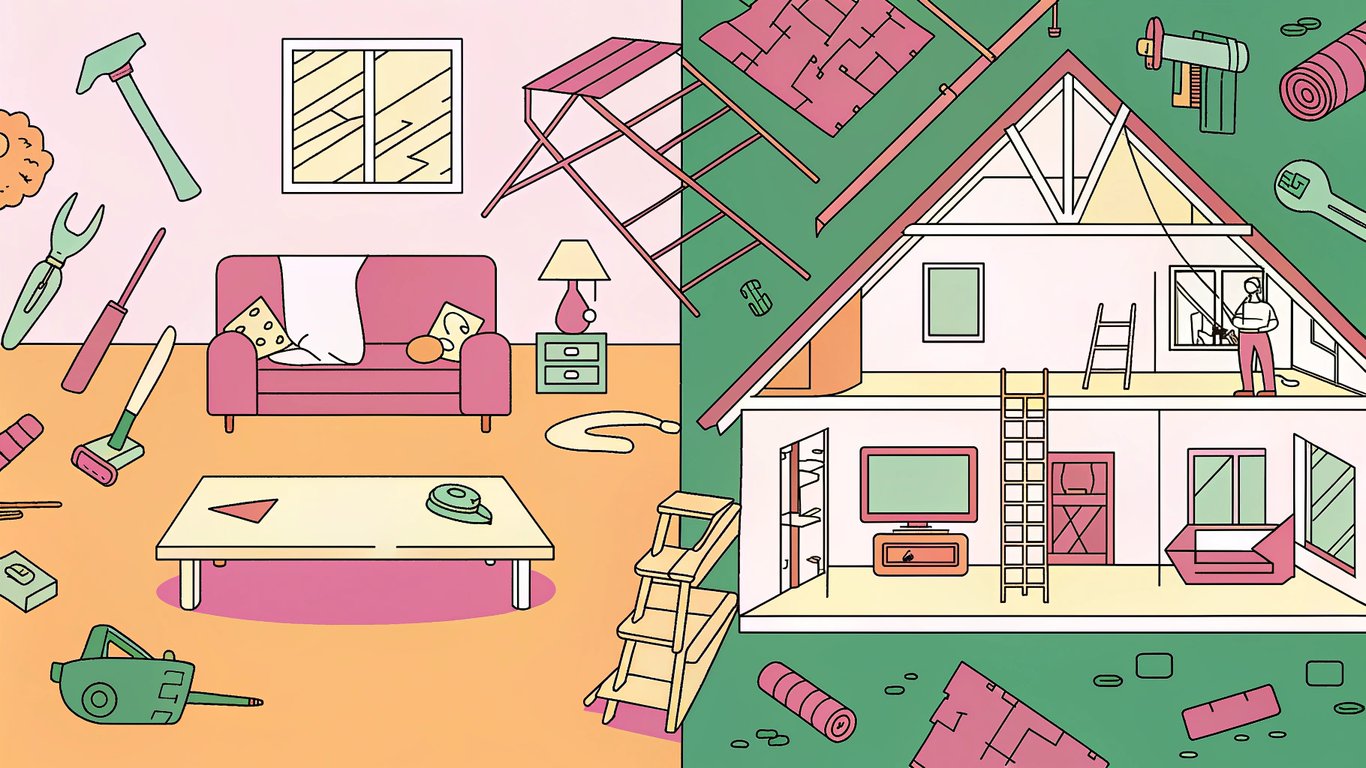
WordPress.com is a hosted service where everything's managed for you. It's simpler to start with, but you'll face limitations on customization, plugins, and monetization. Think of it like renting an apartment - convenient, but you can't knock down walls or paint however you want.
WordPress.org (also called self-hosted WordPress) is the full version. You download the software and install it on your own web hosting. This gives you complete control and ownership. It's like owning a house - more responsibility, but total freedom to customize.
For this wordpress for dummies guide, we're focusing on WordPress.org because that's where you'll have the most flexibility as you grow.
What You'll Learn in This WordPress for Dummies Guide
By the end of this guide, you'll know how to:
- Set up WordPress from scratch, including choosing hosting and installing the platform
- Create and manage posts and pages using the modern block editor
- Choose and customize themes to make your site look professional
- Install essential plugins that extend your site's functionality
- Implement basic SEO strategies to help people find your content
- Keep your site secure and running smoothly
You won't become an expert overnight, but you'll have a solid foundation to build on.
Setting Up Your WordPress Website (Step-by-Step)
Getting WordPress up and running is easier than most people expect. The famous "5-minute installation" is real, especially with modern hosting providers.
Choosing the Right Web Hosting Provider
Your hosting provider is where your website lives on the internet. Think of it as renting space on a computer that's always connected to the web.
For beginners, look for hosts that offer one-click WordPress installation. Popular beginner-friendly options include Bluehost, SiteGround, and HostGator. These typically cost between $3-10 per month for basic plans.
What matters most? Speed, uptime (how often your site is actually accessible), and customer support. You'll probably need help at some point, so 24/7 support is worth paying a bit extra for.
Registering Your Domain Name
Your domain name is your website's address (like yoursite.com). Many hosting providers include a free domain for the first year, which simplifies things.
Keep it short, memorable, and relevant to your content. Avoid hyphens and numbers if possible - they're harder to communicate verbally. And don't stress too much about getting it perfect. Your content matters way more than your domain name.
Installing WordPress: The Famous 5-Minute Installation
Most hosting providers now offer one-click WordPress installation. You'll typically find this in your hosting control panel (cPanel or a custom dashboard).
The process usually involves:
- Clicking the WordPress installer icon
- Choosing your domain name
- Creating an admin username and password
- Entering your email address
- Clicking install
Seriously, that's it. The installer handles all the technical stuff behind the scenes.
Your First Login: Navigating the WordPress Dashboard
Once installed, you'll access your WordPress dashboard by going to yoursite.com/wp-admin. This is your control center for everything.
The left sidebar contains all your main options. Don't worry if it looks overwhelming at first. You'll mainly use just a few sections:
- Posts - Where you create blog content
- Pages - For static content like About or Contact pages
- Appearance - Where you manage themes and customize design
- Plugins - For adding new features
- Settings - General site configuration
Essential Initial Settings to Configure
Before you start creating content, adjust these critical settings under Settings in your dashboard:
General Settings: Set your site title and tagline. These appear in search results and browser tabs. Choose your timezone so scheduled posts publish at the right time.
Permalinks: This is huge for SEO. Go to Settings > Permalinks and choose "Post name" structure. This makes your URLs readable (yoursite.com/article-title instead of yoursite.com/?p=123).
Discussion Settings: Decide whether you want comments enabled and how to moderate them. Many beginners disable comments initially to avoid spam.
Creating and Managing Content Like a Pro
Now for the fun part - actually creating content. WordPress makes this surprisingly intuitive once you understand the basics.
Posts vs Pages: Understanding the Core Difference
Posts are timely content that appears in reverse chronological order. They're for blog articles, news updates, and anything date-specific. Posts can be organized with categories and tags.
Pages are timeless, standalone content. Your About page, Contact page, Services page - these are all pages. They don't appear in your blog feed and aren't organized by date.
Use posts for regular content updates. Use pages for permanent information about your site or business.
Mastering the WordPress Block Editor (Gutenberg)
WordPress's block editor (called Gutenberg) treats every element as a separate block. Paragraphs, images, headings, lists - each is its own block you can move around.
To add a new block, click the + icon. You'll see options for paragraphs, headings, images, lists, and dozens of other content types. It's pretty intuitive once you play with it for a few minutes.
The toolbar above each block lets you format text, add links, and adjust settings. You can drag blocks to reorder them, which beats the old days of cutting and pasting text.
Adding and Optimizing Images and Media
Images make your content more engaging, but they can also slow down your site if not optimized properly.
Before uploading, resize images to the dimensions you'll actually use. A 4000px wide image is overkill for a blog post. Tools like TinyPNG can compress images without visible quality loss.
Always add alt text to images. This describes the image for screen readers and helps with SEO. Be descriptive but concise.
Categories and Tags: Organizing Your Content
Categories are broad groupings. If you run a food blog, you might have categories like Breakfast, Dinner, and Desserts.
Tags are specific descriptors. That same food blog might tag posts with ingredients like chicken, pasta, or chocolate.
Don't go overboard. A few well-chosen categories and relevant tags work better than dozens of barely-used ones.
Themes - Designing Your WordPress Site
Your theme controls how your site looks. It's the design layer on top of WordPress's functionality.

Understanding WordPress Themes: What They Are and How They Work
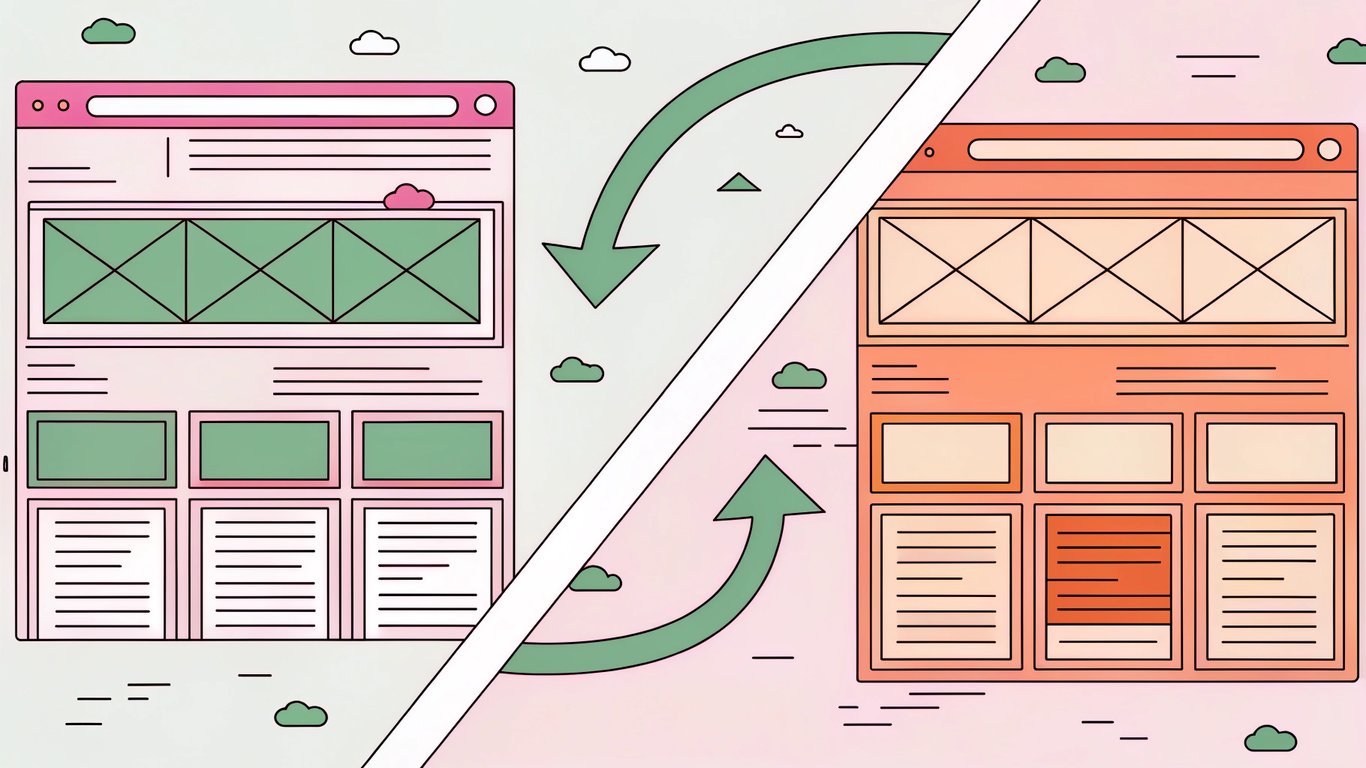
Think of themes as skins for your website. They determine colors, fonts, layouts, and overall visual style. But here's what's cool: you can switch themes without losing your content.
Free themes are available directly in WordPress (Appearance > Themes > Add New). Premium themes typically cost $30-100 and offer more features and support.
How to Choose the Perfect Theme for Your Website
Don't just pick the prettiest theme. Consider these factors:
- Speed: Some themes are bloated with features you'll never use
- Mobile responsiveness: Your site must look good on phones
- Regular updates: Check when the theme was last updated
- Good reviews: See what other users say about support and bugs
- Compatibility: Make sure it works with popular plugins
Popular beginner-friendly themes include Astra, GeneratePress, and Kadence. All three are lightweight and highly customizable.
Using the WordPress Customizer
The Customizer (Appearance > Customize) lets you modify your theme's appearance with a live preview. You can change colors, fonts, header layouts, and more without touching code.
Changes aren't saved until you click Publish, so feel free to experiment. If something looks weird, just refresh the page to start over.
Plugins - Extending WordPress Functionality
Plugins are like apps for your WordPress site. They add features that don't come standard with WordPress.
What Are WordPress Plugins and Why You Need Them
WordPress core is intentionally minimal. Plugins let you add exactly the features you need without bloating the base software.
Want a contact form? There's a plugin. Need to improve SEO? Plugin. Want to speed up your site? You guessed it - plugin.
There are over 60,000 free plugins in the WordPress repository, plus thousands of premium options.
10 Essential Plugins Every Beginner Should Install
Want your site to climb search results? A solid WordPress SEO Plugin can make that happen without breaking a sweat. It handles meta tags, sitemaps, and on‑page tweaks automatically, so you can focus on great content. Give it a look and see how quickly your pages start getting noticed.
Here are the plugins I recommend for almost every new WordPress site:
Plugin | Purpose | Why You Need It |
|---|---|---|
Yoast SEO or Rank Math or RepublishAI | Search engine optimization | Helps your content rank in Google |
Automated backups | Protects your site from data loss | |
Security protection | Blocks hackers and malware | |
Speed optimization | Makes your site load faster | |
Contact forms | Lets visitors reach you easily | |
Spam protection | Filters out spam comments | |
Analytics | Tracks visitor behavior | |
Link monitoring | Finds and fixes broken links | |
URL management | Handles redirects when you change URLs | |
Alternative editor | If you prefer the old editor |
You don't need all of these immediately. Start with SEO, security, and backups, then add others as needed.
Plugin Management Best Practices
More plugins doesn't equal better. Each plugin adds code that can slow your site or create conflicts.
Keep plugins updated. Outdated plugins are security vulnerabilities. WordPress will notify you when updates are available - don't ignore these.
Before updating, make sure you have a recent backup. Updates occasionally break things, and you'll want a way to roll back if needed.
WordPress SEO for Beginners - Getting Found on Google
SEO seems complicated, but the basics are pretty straightforward. You're just helping search engines understand what your content is about.
Installing and Configuring an SEO Plugin
Install either Yoast SEO or Rank Math. Both are excellent and free.
Run through the setup wizard. It'll ask about your site type, organization details, and social profiles. This information helps search engines understand your site better.
The plugin adds an SEO section to your post editor where you can optimize titles, meta descriptions, and check readability.
On-Page SEO: Optimizing Your Posts and Pages
For each post, focus on these elements:
Title tags: Include your main keyword naturally. Keep it under 60 characters so it doesn't get cut off in search results.
Meta descriptions: Write a compelling 155-character summary that makes people want to click. Include your keyword, but write for humans, not robots.
Headings: Use H2 and H3 tags to structure your content. Include related keywords in some headings, but keep them natural and descriptive.
Content quality: This matters most. Write comprehensive, helpful content that actually answers people's questions. Google's gotten pretty good at recognizing quality.
Technical SEO Essentials for WordPress
Your SEO plugin handles most technical SEO automatically, but verify these settings:
XML Sitemap: Your SEO plugin creates this automatically. It's a file that lists all your pages for search engines. You'll submit this to Google Search Console.
Permalink structure: We covered this earlier, but it's worth repeating. Use the "Post name" structure for clean, readable URLs.
Site speed: Google considers page speed in rankings. Use a caching plugin and optimize images. Your hosting quality matters here too.
Mobile responsiveness: Most themes are mobile-friendly by default, but always test your site on a phone to be sure.
Submitting Your Site to Google Search Console
Google Search Console is a free tool that shows how Google sees your site. It's essential for monitoring your search performance.
Add your site, verify ownership (your SEO plugin can help with this), and submit your sitemap. Then you can track which keywords bring traffic, identify errors, and see how your pages perform in search.
Security, Maintenance, and Best Practices
A hacked or broken website helps nobody. These maintenance tasks keep your site running smoothly.
WordPress Security Fundamentals
Security doesn't have to be complicated. Start with these basics:
Use a strong password. Not "password123" or your dog's name. Use a password manager like LastPass or 1Password to generate and store complex passwords.
Enable two-factor authentication. This adds a second verification step when logging in. Plugins like Two Factor Authentication make this easy.
Install a security plugin like Wordfence. It monitors for suspicious activity and blocks common attacks automatically.
Setting Up Automated Backups
Backups are insurance for your website. When (not if) something goes wrong, you'll be glad you have them.
UpdraftPlus is the most popular backup plugin. Set it to automatically backup your site weekly (or daily if you post frequently). Store backups in cloud storage like Google Drive or Dropbox, not just on your server.
Keeping WordPress Updated
WordPress releases updates regularly for security and features. So do theme and plugin developers.
Update WordPress core, themes, and plugins when notified. But do it smart: backup first, then update one thing at a time. If something breaks, you'll know what caused it.
Many hosts offer automatic updates for WordPress core. This is generally safe and recommended.
Your WordPress Journey Starts Now
You've covered a lot of ground. From understanding what WordPress is to setting up security and SEO, you now have the foundation to build and manage a WordPress site.
The truth is, you'll learn more by doing than by reading. Don't wait until you understand everything perfectly. Pick a hosting provider, install WordPress, and start experimenting. You can't really break anything that a backup won't fix.
Quick Recap: Your WordPress for Dummies Checklist
- Choose hosting and register a domain
- Install WordPress (one-click installation)
- Configure essential settings (permalinks, timezone, site title)
- Install a theme that's fast and mobile-responsive
- Add essential plugins (SEO, security, backups)
- Create your first pages (About, Contact)
- Write and publish your first post
- Set up Google Search Console
- Configure automated backups
- Enable security measures (strong password, 2FA)
Next Steps: Taking Your WordPress Skills Further
Once you're comfortable with the basics, consider exploring:
- Advanced SEO techniques and keyword research
- Email marketing integration with plugins like Mailchimp for WordPress
- E-commerce with WooCommerce
- Custom post types and advanced content organization
- Basic CSS for minor design tweaks
- Google Analytics for deeper traffic insights
Recommended Resources and Communities
When you get stuck (and you will), these resources can help:
- WordPress.org Support Forums - Free community help
- WPBeginner - Comprehensive tutorials for all skill levels
- WordPress YouTube Channel - Video tutorials and updates
- WordPress.tv - Recordings from WordCamp conferences
- r/WordPress on Reddit - Active community discussions
WordPress has a massive, helpful community. Don't hesitate to ask questions when you're stuck.
Building a website used to require technical expertise and significant investment. WordPress changed that. Now anyone with an idea and a few hours can create something meaningful on the web.
You're not just learning software. You're gaining the ability to share your ideas, build a business, or create something that matters to you. That's pretty powerful.
So stop reading and start building. Your first WordPress site is waiting.