WordPress powers over 43% of all websites on the internet. That's a massive chunk of the web, which means you're competing with millions of other sites for Google's attention. The good news? Most WordPress sites aren't properly optimized for Google Search, which gives you a real opportunity to stand out.
I've spent years working with WordPress sites, and I've seen firsthand how the right optimization strategies can transform organic traffic. We're not talking about minor improvements here. Some sites have grown their organic traffic by 200-300% just by implementing proper wordpress google seo techniques.

The Current State of WordPress SEO
WordPress comes with decent SEO capabilities out of the box. It generates clean code, creates automatic sitemaps (since version 5.5), and handles basic meta tags. But here's the thing: decent isn't enough anymore. Google's algorithms have become incredibly sophisticated, and they're looking for specific signals that vanilla WordPress doesn't provide.
The platform's flexibility is both its strength and weakness. You can optimize WordPress to rank incredibly well, but you need to know which levers to pull. Most site owners miss critical optimization opportunities because they don't understand how Google actually crawls and indexes WordPress sites.
What Makes Google-Specific Optimization Different
Optimizing for Google isn't the same as general SEO. Google has specific requirements for structured data, particular preferences for site architecture, and unique tools like Google Search Console that give you direct insights into how they see your site.
Google also prioritizes Core Web Vitals, mobile-first indexing, and E-E-A-T signals more heavily than other search engines. Your WordPress configuration needs to address these specific ranking factors, not just generic SEO best practices.
What You'll Achieve with This Guide
This guide walks you through the exact settings, configurations, and monitoring strategies that actually move the needle. You'll learn how to configure WordPress specifically for Google's crawlers, implement structured data that triggers rich results, and set up monitoring systems that catch problems before they tank your rankings.
By the end, you'll have a WordPress site that's properly optimized for Google Search, with monitoring in place to maintain and improve your rankings over time.
Essential WordPress Settings for Google Search Optimization
Let's start with the foundation. These WordPress settings directly impact how Google crawls and indexes your site. Get these wrong, and you're fighting an uphill battle from day one.
Permalink Structure Configuration
Your permalink structure is probably the most important WordPress setting for SEO. Go to Settings > Permalinks in your WordPress dashboard. If you see "Plain" selected, you need to change it immediately.
The "Post name" option is typically your best choice. It creates clean URLs like yoursite.com/optimize-wordpress-seo instead of yoursite.com/?p=123. Google can read these URLs and understand what your page is about before even crawling it.
For blogs, the post name structure works great. For news sites or time-sensitive content, you might want to include the date. Just don't use the default numeric structure. Ever.
Reading Settings and Search Engine Visibility
This one catches people all the time. Navigate to Settings > Reading and look for "Search engine visibility." If that box is checked, Google can't index your site. I've seen sites go months wondering why they're not ranking, only to discover this box was accidentally checked.
While you're here, configure your homepage display. If you're running a blog, "Your latest posts" works fine. For business sites, you'll probably want a static page as your homepage with a separate blog page.
Site Speed and Performance Settings
Google's Core Web Vitals are now ranking factors. Your WordPress site needs to load fast, and there are several settings that impact this. Enable lazy loading for images (WordPress does this automatically since version 5.5). Consider using a caching plugin like WP Super Cache or W3 Total Cache.
Image optimization is critical. Use WebP format when possible, and compress images before uploading. Plugins like ShortPixel can automate this process.
Mobile Responsiveness and Theme Selection
Google uses mobile-first indexing, which means they primarily use the mobile version of your site for ranking. Your WordPress theme needs to be responsive. Most modern themes are, but test yours using Google's Mobile-Friendly Test.
Don't use separate mobile URLs (m.yoursite.com). Responsive design is the way to go. It's simpler to maintain and Google prefers it.
XML Sitemap Generation and Submission
WordPress generates a basic XML sitemap automatically, but it's pretty limited. You'll want to use an SEO plugin to create a more comprehensive sitemap that includes images, videos, and proper priority settings.
Once your sitemap is generated, submit it to Google Search Console. This tells Google exactly which pages you want indexed and helps them discover new content faster.
Robots.txt Optimization
Your robots.txt file guides search engine crawlers. WordPress doesn't create a physical robots.txt file by default, but you can create one in your root directory. At minimum, it should include your sitemap location and block unnecessary WordPress directories.
A basic robots.txt for WordPress looks like this: block wp-admin (except admin-ajax.php), block wp-includes, and include your sitemap URL. Most SEO plugins can generate this for you.
Implementing Structured Data and Schema Markup
Structured data is where wordpress google seo gets really powerful. This is code that helps Google understand your content and display it in rich results like featured snippets, knowledge panels, and enhanced search listings.
Understanding Schema Markup for WordPress
Schema markup is structured data vocabulary that search engines understand. When you add schema to your WordPress site, you're essentially giving Google a cheat sheet about your content. Instead of guessing what your page is about, Google knows exactly what it contains.
The impact can be significant. Pages with proper schema markup often see higher click-through rates because they appear with rich results in search. Think star ratings, recipe cards, FAQ dropdowns, and breadcrumb navigation in search results.
Essential Schema Types for WordPress Sites
Different content types need different schema. Here are the most important ones for WordPress sites:
- Article schema: Essential for blog posts and news content
- Organization schema: Helps Google understand your business entity
- Person schema: Important for author profiles and personal brands
- FAQ schema: Creates expandable FAQ sections in search results
- HowTo schema: Perfect for tutorial content with step-by-step instructions
- Product schema: Critical for e-commerce sites to show prices and ratings
- Local Business schema: Necessary for businesses with physical locations
Plugin-Based Schema Implementation
The easiest way to add schema to WordPress is through plugins. Rank Math and Yoast SEO both include schema functionality. Rank Math is particularly strong here, offering more schema types out of the box.
In Rank Math, you can configure schema from the post editor. Just scroll down to the Rank Math meta box, click on Schema, and select your schema type. The plugin automatically generates the JSON-LD code and adds it to your page.
For more advanced schema needs, Schema Pro offers additional schema types and more granular control. It's a paid plugin, but it's worth it if you need complex schema implementations.
Testing and Validating Your Structured Data
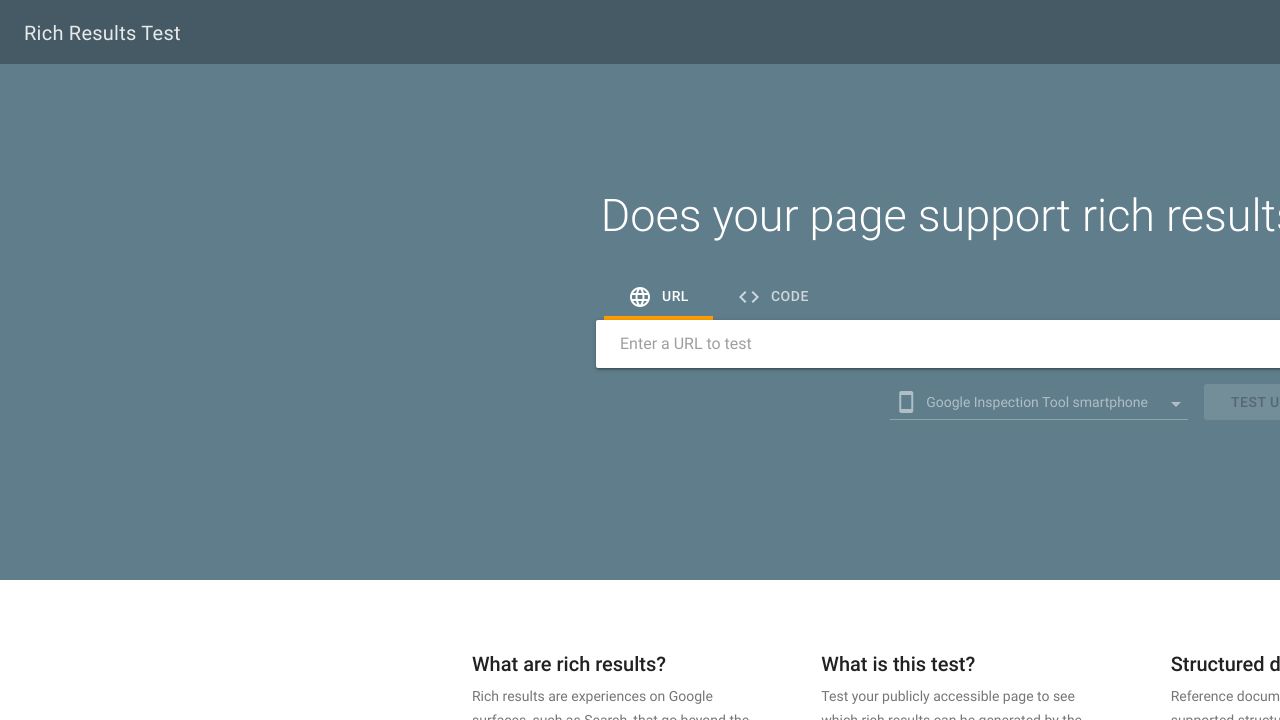
Adding schema isn't enough. You need to verify it's working correctly. Use Google's Rich Results Test to check if your schema is eligible for rich results.
The Schema Markup Validator is another useful tool. It shows you exactly what schema Google sees on your page and flags any errors or warnings.
Common errors include missing required properties, incorrect data types, and mismatched information. Fix these before they prevent your rich results from appearing.
WordPress SEO Plugin Configuration for Google
SEO plugins are essential for WordPress. They handle technical SEO tasks that would otherwise require custom code. But you need to configure them correctly for Google Search.
Choosing the Right SEO Plugin
The main contenders are Yoast SEO, Rank Math, All in One SEO, and SEOPress. Yoast is the most popular, but Rank Math has gained significant ground with more features in the free version.
Rank Math includes built-in schema support, Google Search Console integration, and more granular control over technical SEO settings. Yoast is simpler and more beginner-friendly. For most SEO professionals, Rank Math offers better value.
Don't install multiple SEO plugins. They'll conflict with each other and cause problems. Pick one and stick with it.
On-Page SEO Settings Configuration
Your SEO plugin controls how your content appears in Google search results. Configure title templates to include your brand name and relevant keywords. Set up meta description templates that encourage clicks.
Enable Open Graph tags for social sharing. When someone shares your content on Facebook or LinkedIn, these tags control how it appears. Twitter Cards do the same for Twitter.
Most plugins let you set global defaults, then override them on individual posts. Use this flexibility to optimize each page for its specific target keyword.
Advanced Plugin Features for Google
Breadcrumbs help Google understand your site structure. Enable them in your SEO plugin and add them to your theme. They also appear in search results, making your listings more prominent.
Internal linking suggestions can help you build a stronger site architecture. Rank Math shows related posts while you're writing, making it easy to add contextual internal links.
Redirect management is critical when you delete or move content. Your SEO plugin should handle 301 redirects automatically, preserving link equity and preventing 404 errors.
Technical WordPress SEO for Google Crawling and Indexing
Technical SEO is where many WordPress sites fall short. These optimizations ensure Google can efficiently crawl and index your content.
Managing Crawl Budget Effectively
Google allocates a certain amount of resources to crawling your site. This is your crawl budget. If Google wastes time crawling low-value pages, they might miss your important content.
Use your robots.txt file and meta robots tags to prevent Google from crawling admin pages, search results, and other thin content. Focus their attention on your money pages.
Handling Duplicate Content Issues
WordPress creates duplicate content by default. Your posts appear on category pages, tag pages, archive pages, and the homepage. Google doesn't like this.
Use canonical tags to tell Google which version is the original. Your SEO plugin should handle this automatically, pointing all duplicate versions back to the main post URL.
Consider noindexing tag and date archives if they don't provide unique value. Category pages can be valuable if you add unique content to them.
HTTPS and Security Configuration
HTTPS is a ranking factor. If your site isn't using SSL, get a certificate installed immediately. Most hosting providers offer free SSL certificates through Let's Encrypt.
After installing SSL, update your WordPress site URL in Settings > General. Then use a plugin like Really Simple SSL to fix mixed content issues.
Optimizing WordPress Core Web Vitals
Core Web Vitals measure user experience. Google cares about Largest Contentful Paint (LCP), First Input Delay (FID), and Cumulative Layout Shift (CLS).
Improve LCP by optimizing your largest image or text block. Use a CDN, compress images, and implement lazy loading. For FID, minimize JavaScript execution. For CLS, set explicit dimensions for images and ads.
Test your Core Web Vitals using PageSpeed Insights. It gives you specific recommendations for your WordPress site.
Setting Up Comprehensive Google Search Monitoring
Optimization without monitoring is pointless. You need to track your performance and catch issues before they become problems.
Google Search Console Setup and Configuration
Google Search Console is your direct line to Google. It shows you exactly how Google sees your site. Set it up by verifying your property (use the HTML tag method or DNS verification).
Submit your sitemap in the Sitemaps section. This helps Google discover your content faster. Check the Coverage report regularly to identify indexing issues.
Key Google Search Console Metrics to Monitor
Focus on these metrics in Search Console:
- Impressions: How often your site appears in search results
- Clicks: How many people actually click through to your site
- CTR: Your click-through rate (clicks divided by impressions)
- Average position: Where you typically rank for your keywords
Look for pages with high impressions but low CTR. These are opportunities to improve your title tags and meta descriptions. Pages with declining positions need content updates or additional backlinks.
Google Analytics 4 Integration for SEO
Connect Google Analytics 4 to your WordPress site to track user behavior. Install it using a plugin like Site Kit by Google or add the tracking code manually.
Create custom reports that show organic traffic trends, landing page performance, and conversion rates from organic search. This data helps you understand which content drives real business results.
Monitoring Core Web Vitals and Page Experience
Google Search Console includes a Core Web Vitals report. Check it monthly to identify pages with poor performance. The report categorizes URLs as Good, Needs Improvement, or Poor.
Focus on fixing Poor URLs first. These are actively hurting your rankings. Use PageSpeed Insights to get specific optimization recommendations for each problem page.
Content Optimization Strategies for Google Rankings
Technical optimization gets you in the game. Content optimization helps you win.
Keyword Research and Implementation
Start with keyword research before writing. Use tools like Ahrefs, SEMrush, or Google's Keyword Planner to find terms your audience searches for.
Target one primary keyword per page. Include it in your title, first paragraph, at least one heading, and naturally throughout the content. Don't force it. Google's smart enough to understand synonyms and related terms.
Optimizing WordPress Content Structure
Use heading tags properly. Your title should be H1. Main sections should be H2. Subsections should be H3. This hierarchy helps Google understand your content structure.
Keep paragraphs short. Three to four sentences max. Use bullet points to break up dense information. Add images every few paragraphs to maintain visual interest.
Image SEO and Media Optimization
Every image needs descriptive alt text. This helps Google understand what the image shows and improves accessibility. Name your image files descriptively before uploading (wordpress-seo-tips.jpg instead of IMG_1234.jpg).
Compress images before uploading. Large image files slow down your site and hurt Core Web Vitals. Use WebP format when possible for better compression without quality loss.
Internal Linking Architecture
Link to other relevant posts on your site. This helps Google discover content, distributes link equity, and keeps visitors on your site longer. Use descriptive anchor text that tells readers what they'll find when they click.
Create content clusters around main topics. Have a pillar page that covers a topic broadly, then link to more detailed posts about specific aspects. This structure signals topical authority to Google.
Troubleshooting Common WordPress Google SEO Issues
Even with proper setup, issues happen. Here's how to diagnose and fix common problems.
Diagnosing Indexing Problems
If your pages aren't appearing in Google, check Search Console's Coverage report. Look for errors like "Discovered - currently not indexed" or "Crawled - currently not indexed."
Common causes include low-quality content, duplicate content issues, or insufficient internal linking. Improve the content, add more internal links pointing to the page, and request indexing through Search Console.
Fixing Crawl Errors and 404 Issues
Search Console shows crawl errors in the Coverage report. 404 errors mean Google tried to access a page that doesn't exist. This happens when you delete content or change URLs without setting up redirects.
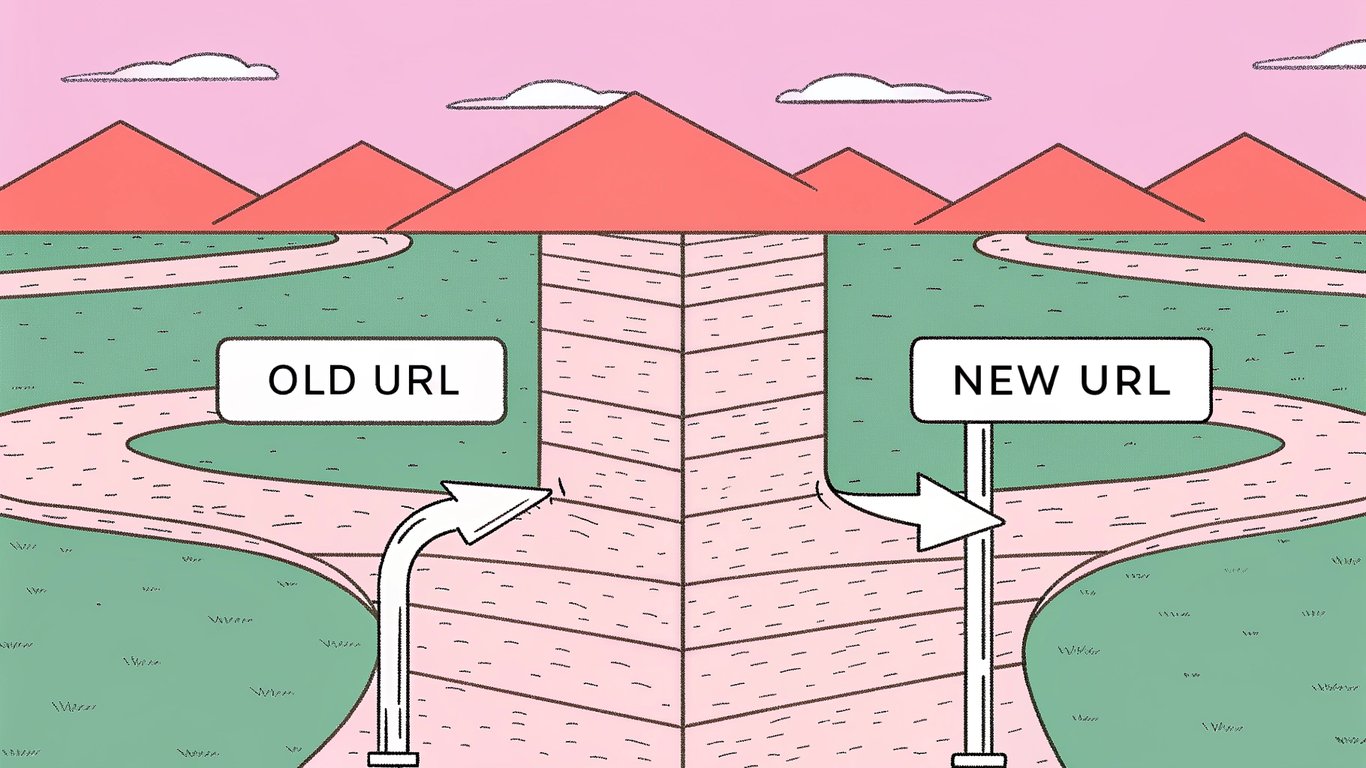
Fix 404 errors by creating 301 redirects from the old URL to the new one. Your SEO plugin should have a redirect manager. If the content is truly gone, redirect to the most relevant existing page.
Resolving Plugin Conflicts Affecting SEO
Sometimes plugins conflict with each other or with your theme. This can break schema markup, prevent proper indexing, or slow down your site.
Deactivate plugins one at a time to identify the culprit. Check your site after each deactivation. Once you find the problem plugin, look for an alternative or contact the developer for support.
Maintaining Long-Term WordPress Google SEO Success
SEO isn't a one-time project. It requires ongoing attention and adjustment. But with the right systems in place, maintaining your wordpress google seo becomes manageable.
Your WordPress Google SEO Action Plan
Start with the basics. Fix your permalink structure, verify search engines can access your site, and install an SEO plugin. Then move to technical optimization: implement schema markup, optimize Core Web Vitals, and set up proper redirects.
Connect Google Search Console and Analytics. These tools give you the data you need to make informed decisions. Check them weekly at first, then monthly once your site is stable.
Focus on creating high-quality content that answers real questions. Technical optimization gets you in the game, but content wins the game.
Staying Updated with Google Algorithm Changes
Google updates its algorithm constantly. Follow the Google Search Central Blog for official announcements. Join SEO communities on Twitter or Reddit to stay informed about changes.
Don't panic when rankings fluctuate. Algorithm updates can cause temporary volatility. Wait a few weeks before making major changes. Focus on long-term quality rather than chasing every algorithm tweak.
Measuring ROI and Success Metrics
Track organic traffic growth, keyword rankings, and conversion rates from organic search. These metrics show whether your SEO efforts are working.
Set realistic goals. Organic traffic growth takes time. Expect to see meaningful results after three to six months of consistent optimization. Document your progress to show stakeholders the value of your SEO work.
WordPress google seo is a marathon, not a sprint. But with proper configuration, structured data implementation, and consistent monitoring, you can build sustainable organic traffic that grows your business for years to come.