
Category pages aren't just organizational tools. They're some of the most powerful pages on your WordPress site for SEO, yet most people treat them like afterthoughts.
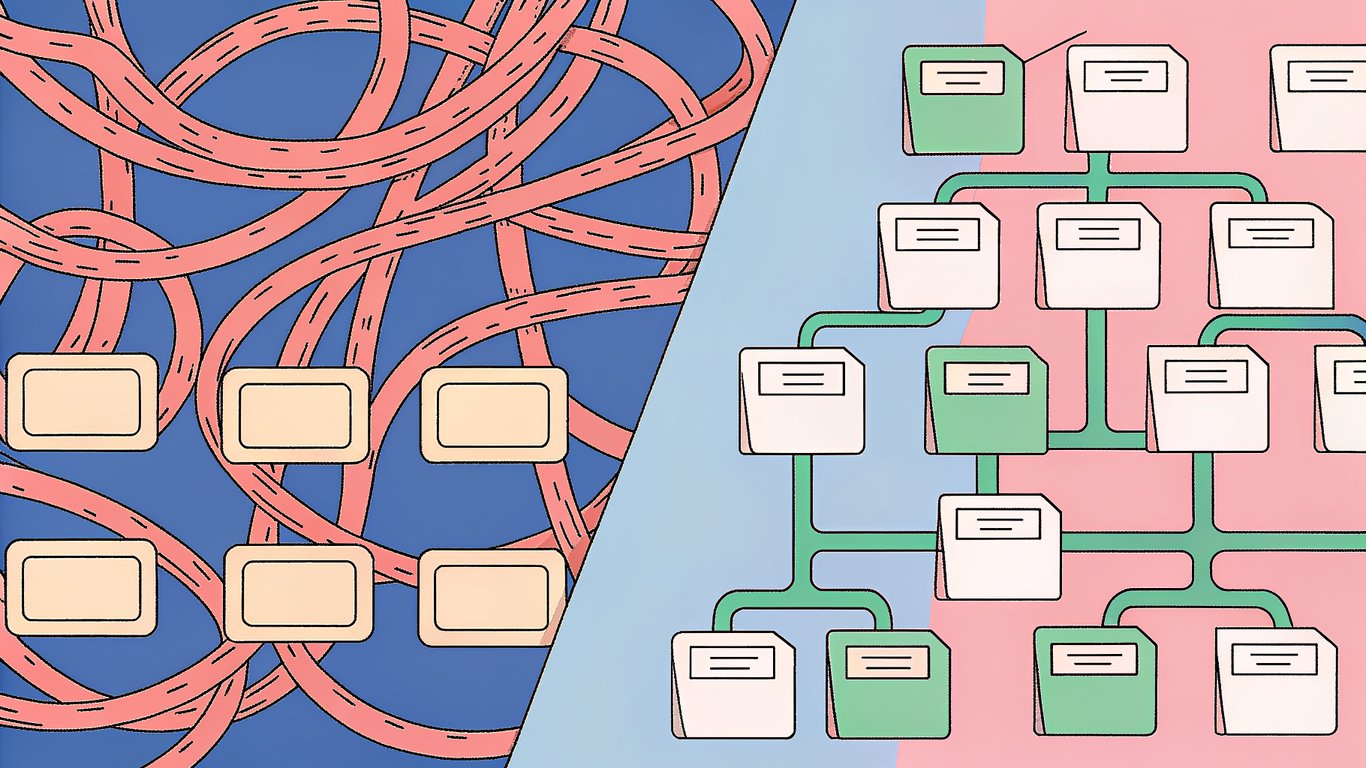
Think about it: your category pages naturally accumulate internal links from every post you assign to them. They create logical content hubs that help both visitors and search engines understand your site's structure. When optimized properly, they can rank for competitive keywords and drive significant organic traffic.
But here's the problem. Out of the box, WordPress generates pretty basic category pages. Just a list of posts with minimal content. No unique descriptions, thin on-page elements, and often duplicate content issues across paginated pages.

The Role of Category Pages in WordPress SEO
Category pages function as hub pages in your site architecture. They organize related content and distribute link equity throughout your site. Every time you publish a new post in a category, that category page gets updated with fresh content, which search engines love.
These pages also help establish topical authority. When you have a well-optimized category page about a specific topic, with multiple high-quality posts linked from it, search engines recognize you as a credible source on that subject.
Common Category Page Mistakes That Hurt Rankings
Most WordPress sites make the same mistakes with category pages:
- Thin content: Just post excerpts with no unique category description
- Duplicate content: Paginated pages with similar content and no proper canonical tags
- Poor internal linking: Missing breadcrumbs and contextual links
- Indexation problems: Empty categories getting indexed or important categories blocked
- Missing schema markup: No structured data to help search engines understand the page type
These issues waste crawl budget and dilute your site's SEO potential. But they're all fixable with the right approach to category optimization.
Understanding WordPress Category Page Architecture
Before you start optimizing, you need to understand how WordPress actually generates category pages. This knowledge helps you make smarter decisions about customization.
WordPress Template Hierarchy for Category Pages
WordPress uses a specific order when selecting which template file to use for category pages. It checks for templates in this sequence:
- category-{slug}.php: Most specific, targets a single category by slug
- category-{id}.php: Targets a category by ID number
- category.php: General template for all category pages
- archive.php: Fallback for all archive types
- index.php: Ultimate fallback template
This hierarchy gives you flexibility. You can create a custom template for your most important category while using a general template for others. Or you can customize all category pages with a single category.php file.
Default Category Page Structure and Limitations

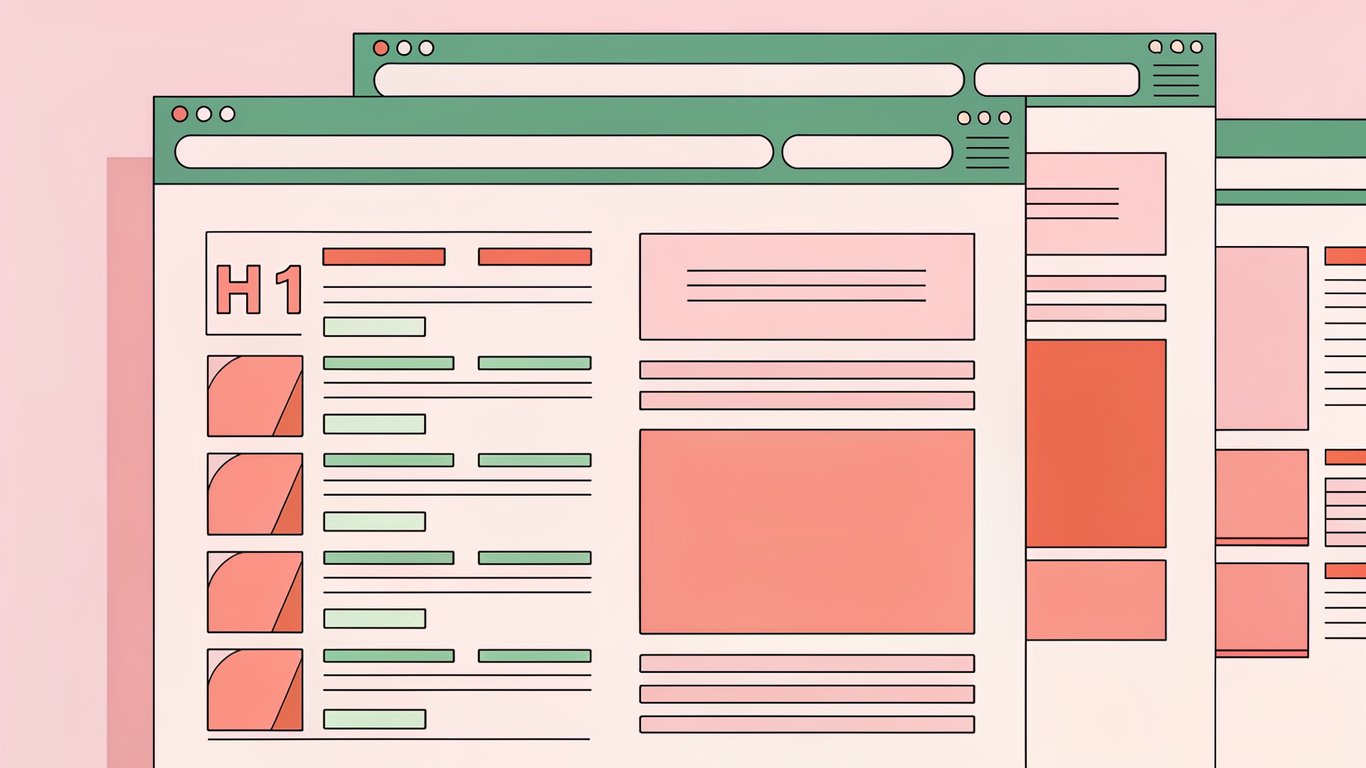
WordPress's default category pages are functional but limited. They typically show the category name as an H1, maybe a description if you've added one, and then a list of posts with excerpts. That's about it.
There's no unique content, no schema markup, and often no breadcrumbs. The pagination is basic. And if you haven't written a category description, there's literally nothing unique on the page except the post titles.
This creates thin content issues. Search engines see pages with minimal unique text and lots of duplicate excerpts. Not exactly a recipe for ranking success.
Category URLs and Permalink Structure Best Practices
By default, WordPress adds /category/ to your category URLs. So you get URLs like yoursite.com/category/seo-tips/ instead of the cleaner yoursite.com/seo-tips/.
You can remove this base using plugins like Yoast SEO or by editing your permalink settings. Cleaner URLs are generally better for both users and SEO, though the impact is relatively minor.
More important is keeping your category slugs short, descriptive, and keyword-focused. Use hyphens to separate words and avoid special characters.
Optimizing Category Page Templates for SEO and UX
Now we get to the practical stuff. There are three main approaches to customizing your category page templates, depending on your technical comfort level and theme setup.
Method 1: Using the WordPress Site Editor (Block Themes)
If you're using a modern block theme, the Site Editor makes category customization pretty straightforward. Navigate to Appearance > Editor in your WordPress dashboard, then select Templates from the sidebar.
Look for the Archive template (or Category template if your theme has one). Click to edit it, and you can add blocks for your category description, customize the post query loop, add featured images, and adjust the layout.
The advantage here is visual editing without code. The downside is you're limited to what blocks can do, and some advanced customizations might not be possible.
Method 2: Creating Custom PHP Category Templates
For developers, creating a custom category.php file in your child theme gives you complete control. You can structure the page exactly how you want, add custom queries, and implement advanced features.
A basic category.php template might include the category title, description, breadcrumbs, the post loop, and pagination. You'd use WordPress template tags like single_cat_title(), category_description(), and the_posts_pagination() to pull in the necessary elements.
This approach requires PHP knowledge but offers maximum flexibility for category optimization.
Method 3: Using Page Builders for Category Customization
Page builders like Elementor or Beaver Builder offer a middle ground. They provide visual editing with more power than the Site Editor but don't require coding.
Most page builders have archive builder features where you can design custom category page layouts. You can add dynamic elements that pull in category information, customize post grids, and create sophisticated designs.
The tradeoff is performance. Page builders can add bloat to your site, so you'll want to monitor load times carefully.
Essential Elements Every Category Page Should Include
Regardless of which method you choose, make sure your category pages include these elements:
- Descriptive H1 tag: Usually the category name, but can be optimized for keywords
- Unique category description: 150-300 words of original content explaining what the category covers
- Breadcrumb navigation: Helps users and search engines understand site structure
- Post count or filtering options: Improves user experience on large categories
- Featured or pinned posts: Highlight your best content in each category
- Related categories: Internal linking to other relevant category pages
Adding Unique, SEO-Optimized Category Descriptions
Category descriptions are probably the single most important element for category optimization. They're your chance to add unique, keyword-rich content to what would otherwise be a thin page.
Write descriptions that actually help users understand what they'll find in the category. Don't just stuff keywords. Aim for 150-300 words that provide context and value.
Position the description prominently, typically right after the H1 and before the post list. Some themes hide descriptions or show them in tiny text at the bottom, which wastes their SEO value.
Implementing Schema Markup for Category Pages
Schema markup helps search engines understand that your category page is a collection of related content. The most relevant schema types are CollectionPage or ItemList.
Most SEO plugins like Rank Math add basic schema automatically. But you can enhance it by adding more specific markup about the items in your category, breadcrumbs, and organization information.
Implementing SEO-Friendly Pagination for Category Pages
Pagination is where things get tricky. You need to balance user experience with SEO considerations, and the best practices have evolved over the years.
Understanding Pagination SEO Challenges
Paginated category pages create several SEO challenges. First, they can waste crawl budget. If you have 50 pages of posts in a category, search engines might spend time crawling all 50 pages when only the first few matter.
Second, they create duplicate content signals. Each paginated page has similar structure and often overlapping content in excerpts. Without proper handling, this can dilute your ranking signals.
Third, they fragment link equity. If external links point to different paginated pages, that authority gets spread thin instead of consolidated.
Pagination Implementation Methods in WordPress
You've got several options for implementing pagination:
- Numbered pagination: Traditional page numbers (1, 2, 3...). Best for SEO because each page has a unique URL that can be crawled.
- Load more button: Loads additional posts without changing the URL. Better UX but can hide content from crawlers if not implemented with progressive enhancement.
- Infinite scroll: Automatically loads more posts as users scroll. Worst for SEO unless you implement it carefully with proper URL updates and crawlable links.
For most sites, numbered pagination offers the best balance of SEO and usability.
Adding Pagination with WordPress Core Functions
WordPress provides built-in functions for pagination. The most common is the_posts_pagination(), which generates numbered page links automatically based on your posts per page setting.
For more control, you can use paginate_links() to customize the pagination output. This lets you adjust the number of page links shown, add custom classes, and modify the structure.
Pagination Best Practices for 2026
Current best practices for pagination have shifted from Google's previous recommendations. Here's what works now:
Use self-referential canonical tags on each paginated page. So page 2 canonicals to itself, page 3 to itself, and so on. This tells search engines that each page is unique and should be indexed separately.
Google deprecated rel=prev/next tags back in 2019, so you don't need to worry about those anymore. They were helpful for indicating pagination sequences, but Google no longer uses them.
Some SEO experts still recommend pointing all paginated pages to page 1 with canonicals, but this can prevent deeper pages from ranking for long-tail queries. The self-referential approach is generally safer.
Managing Crawl Budget with Pagination
For large sites, you might want to limit how deep search engines crawl into your pagination. You can do this by adding a meta robots noindex tag to pages beyond a certain threshold (like page 5 or 10).
This preserves crawl budget for more important pages while still allowing users to navigate through all your content. Just make sure you're not noindexing pages that could rank for valuable long-tail keywords.
Mastering Canonical Rules for Category Pages
Canonical tags are critical for category optimization. They prevent duplicate content issues and consolidate ranking signals where you want them.
What Are Canonical Tags and Why They Matter
A canonical tag tells search engines which version of a page is the "main" one when you have similar or duplicate content. It's a way of saying "hey, if you're going to rank one of these pages, rank this one."
For category pages, canonicals help with several issues. They prevent filtered or sorted versions of category pages from competing with the main version. They clarify which paginated page should receive ranking credit. And they consolidate link equity to the right pages.
Canonical Tag Implementation for Category Pages
Your main category page (page 1) should have a self-referential canonical tag pointing to itself. This is standard practice and most WordPress SEO plugins handle it automatically.
The canonical tag goes in the HTML head section and looks like this: <link rel="canonical" href="https://yoursite.com/category-name/" />
Handling Canonicals on Paginated Category Pages
This is where opinions diverge. You have two main options:
Option 1: Self-referential canonicals. Each paginated page canonicals to itself. Page 2 points to page 2, page 3 to page 3, etc. This allows each page to rank independently for relevant queries.
Option 2: All pages canonical to page 1. Every paginated page points back to the first page. This consolidates all ranking signals to page 1 but prevents deeper pages from ranking.
For most sites, option 1 works better. It gives you more opportunities to rank for long-tail keywords that might appear in posts on deeper pages. Option 2 makes sense if you're worried about thin content on paginated pages or want to focus all authority on page 1.
Common Canonical Mistakes on Category Pages
Watch out for these canonical errors:
- Missing canonicals: Some pages don't have any canonical tag, leaving search engines to guess
- Conflicting canonicals: Multiple canonical tags pointing to different URLs
- Canonical chains: Page A canonicals to Page B, which canonicals to Page C (search engines may ignore these)
- HTTPS/HTTP mismatches: Canonical points to HTTP version when page is HTTPS
- Trailing slash inconsistencies: Canonical has a trailing slash but URL doesn't, or vice versa
Using WordPress SEO Plugins for Canonical Management
SEO plugins like Yoast SEO, Rank Math, and All in One SEO handle canonicals automatically for most situations. They'll add self-referential canonicals to your category pages and manage pagination canonicals based on your settings.
In Yoast SEO, you can control pagination canonicals under SEO > Search Appearance > Archives. Rank Math has similar settings in its configuration wizard and advanced options.
Just make sure you're not running multiple SEO plugins simultaneously, as they can create conflicting canonical tags.
Advanced Category Optimization Techniques
Once you've got the basics down, these advanced techniques can take your category optimization to the next level.
Strategic Internal Linking from Category Pages
Category pages are natural link hubs. Use them strategically to distribute authority throughout your site. Link to your most important posts within each category using contextual anchor text in the category description.
You can also add a "featured posts" section that highlights your best content in each category. This helps newer visitors find your cornerstone content while passing link equity to pages you want to rank.
Preventing Category Page Indexation Issues
Empty categories create thin content problems. If you have categories with no posts, either delete them or add a noindex tag until you publish content in them.
Similarly, if you have too many categories and they're cannibalizing each other's rankings, consider consolidating. Fewer, more focused categories often perform better than dozens of thin ones.
Optimizing Category Page Load Speed
Category pages can get slow if you're loading lots of featured images and excerpts. Implement lazy loading for images below the fold. Optimize image sizes so you're not loading full-resolution images for thumbnails.
Consider using a caching plugin to serve static HTML versions of your category pages to most visitors. This dramatically improves load times, especially for popular categories.
Adding Filtering and Sorting Options
For categories with lots of posts, filtering and sorting improve user experience. You can add filters by date, popularity, or custom taxonomies.
The SEO challenge is making sure filtered views don't create duplicate content. Use canonical tags to point filtered versions back to the main category page, or add noindex tags to filtered views.
Testing, Troubleshooting, and Maintenance
Category optimization isn't a one-time task. You need to validate your implementation and maintain it over time.
Validating Your Category Page Optimization
Check your canonical tags by viewing page source and searching for "canonical". Make sure each page has exactly one canonical tag pointing to the correct URL.
Test pagination by clicking through several pages and verifying that URLs change correctly and content loads properly. Check that your pagination links are crawlable (not JavaScript-only).
Use Google Search Console to monitor indexation. Look for duplicate content issues or pages that should be indexed but aren't.
Common Category Page SEO Issues and Fixes
If category pages aren't ranking, check for these common problems:
- Thin content: Add longer, more detailed category descriptions
- Duplicate titles: Make sure each category has a unique title tag
- Missing meta descriptions: Write custom descriptions for important categories
- Slow load times: Optimize images and implement caching
- Poor mobile experience: Test on mobile devices and fix layout issues
Maintaining Category Optimization During WordPress Updates
Theme updates can overwrite your custom category templates. Always use a child theme for customizations so they survive updates.
Plugin updates occasionally change how they handle canonicals or pagination. After major SEO plugin updates, spot-check your category pages to make sure everything still works correctly.
WordPress core updates rarely affect category pages directly, but it's worth testing after major version updates just to be safe.
Building a Sustainable Category Optimization Strategy
Category optimization isn't about implementing every technique at once. Start with the fundamentals and build from there.
Focus first on adding unique descriptions to your most important categories. These are probably the ones with the most posts and the most traffic potential. Make sure they have proper canonical tags and clean pagination.
Then move on to template customization if your default theme isn't cutting it. Add schema markup, improve internal linking, and optimize for speed.
The key is treating category pages as real content assets, not just automatically-generated archive pages. When you put in the effort to optimize them properly, they can become some of your best-performing pages for organic search.
Monitor your category pages in Search Console regularly. Track which ones are gaining impressions and clicks. Double down on optimizing the categories that show promise, and consider consolidating or noindexing the ones that aren't performing.
Category optimization is an ongoing process, but the payoff is worth it. Better-organized content, improved user experience, and stronger SEO performance across your entire WordPress site.