
You've built your WordPress site, published great content, and hit the publish button. But here's the thing: search engines won't automatically find everything you've created. That's where XML sitemaps come in.
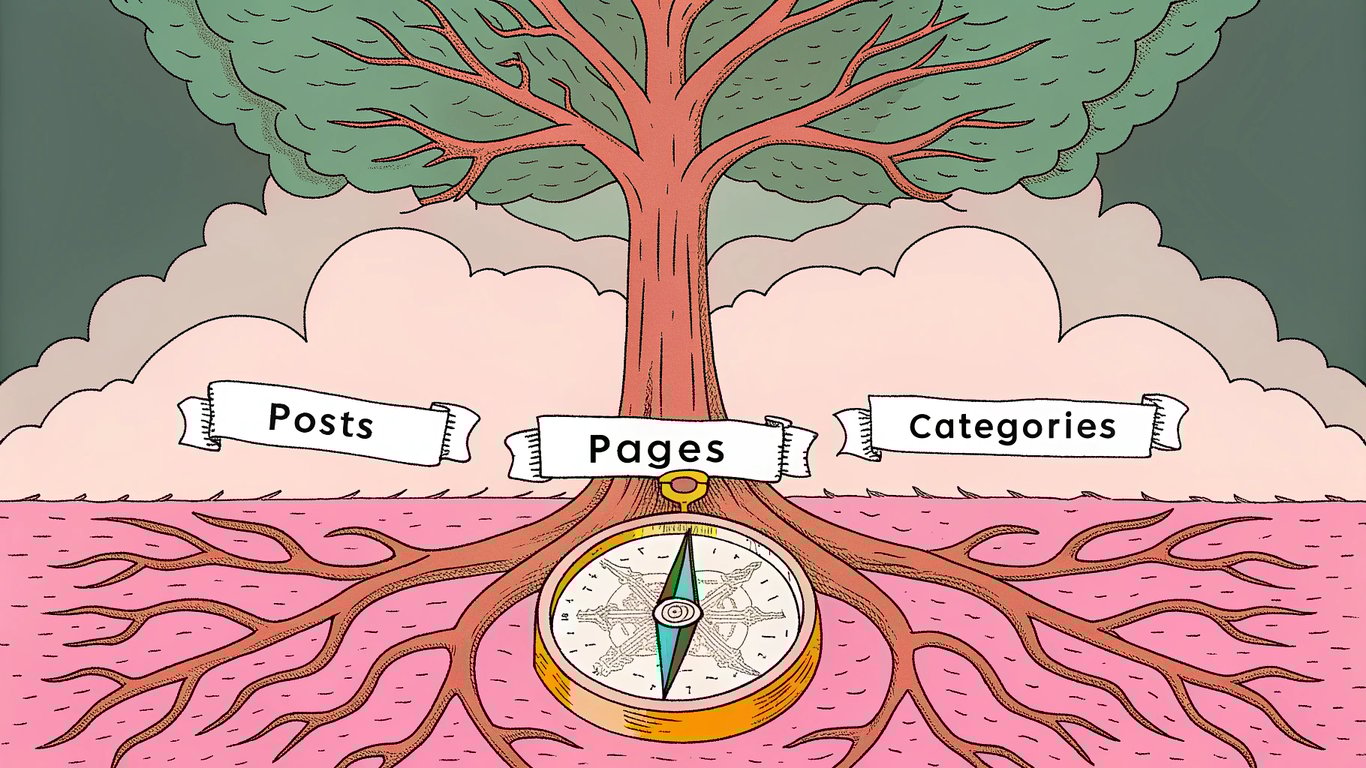
Think of an XML sitemap as a roadmap for search engines. It's a file that lists all the important pages on your site, making it easier for Google and other search engines to discover and index your content. Without one, you're basically hoping search engines stumble across your pages through links alone.
What is an XML Sitemap?

An XML sitemap is a structured file that contains a list of URLs from your website. It's written in XML (Extensible Markup Language), which search engines can easily read and understand. The sitemap tells search engines which pages exist on your site, when they were last updated, and how they relate to each other.
Most WordPress sitemaps include information about your posts, pages, categories, and tags. Some advanced sitemaps can also include images, videos, and other media files.
Why Your WordPress Site Needs an XML Sitemap
Here's why setting up a wordpress xml sitemap matters for your site:
- Faster indexing: New content gets discovered and indexed more quickly by search engines
- Better crawl efficiency: Search engines can crawl your site more intelligently, focusing on important pages
- Improved SEO: Pages that might not be easily discoverable through internal links get found
- Content organization: You can signal to search engines which content types matter most on your site
If you're running a blog with hundreds of posts or an e-commerce site with many product pages, a sitemap becomes even more critical. It ensures nothing gets lost in the shuffle.
How WordPress Handles Sitemaps (Native vs Plugin Solutions)
Since WordPress 5.5 (released in 2020), the platform includes built-in sitemap functionality. This was a pretty big deal because it meant you didn't necessarily need a plugin anymore.
The native WordPress sitemap is basic but functional. It automatically generates sitemaps for your posts, pages, and custom post types. However, it doesn't offer much customization. You can't exclude specific pages, set priority levels, or configure advanced settings.
That's where plugins come in. Tools like Yoast SEO, Rank Math, and All in One SEO give you much more control over your sitemap. You can choose exactly what gets included, exclude low-value pages, and even create specialized sitemaps for images and videos.
Using WordPress's Built-In XML Sitemap Feature
Let's start with the simplest option. If you're running a basic WordPress site and don't need advanced features, the native sitemap might be all you need.
Checking if Your WordPress Sitemap is Active
WordPress automatically creates a sitemap for you. To check if it's working, just add /wp-sitemap.xml to the end of your domain name. For example: yourdomain.com/wp-sitemap.xml
If you see a page with a list of sitemaps (not a 404 error), you're good to go. The page will show links to individual sitemaps for posts, pages, and other content types.
Understanding the Default WordPress Sitemap Structure
WordPress uses what's called a sitemap index. This is basically a sitemap of sitemaps. When you visit /wp-sitemap.xml, you'll see links to separate sitemaps for different content types:
- Posts sitemap (wp-sitemap-posts-post-1.xml)
- Pages sitemap (wp-sitemap-posts-page-1.xml)
- Categories sitemap (wp-sitemap-taxonomies-category-1.xml)
- Tags sitemap (wp-sitemap-taxonomies-post_tag-1.xml)
Each individual sitemap can contain up to 2,000 URLs. If you have more than that, WordPress automatically creates additional numbered sitemaps.
Limitations of the Native WordPress Sitemap
The built-in sitemap works, but it's pretty bare-bones. You can't exclude specific pages or posts. There's no way to set priority levels or change frequency settings. And you can't create image or video sitemaps.
For many sites, these limitations don't matter much. But if you need more control, you'll want to use a plugin instead.

Setting Up XML Sitemaps with Popular WordPress Plugins
Plugins give you way more flexibility when creating wordpress xml sitemaps. Let's walk through the most popular options.
Using Yoast SEO for XML Sitemaps
Yoast SEO is probably the most widely-used SEO plugin for WordPress. Setting up a sitemap with Yoast is straightforward:
- Install and activate the Yoast SEO plugin from your WordPress dashboard
- Go to SEO > General in your WordPress admin menu
- Click on the Features tab
- Make sure XML sitemaps are toggled on (they usually are by default)
- Click the question mark icon next to XML sitemaps to see your sitemap URL
Your sitemap will typically be at yourdomain.com/sitemap_index.xml. Yoast automatically disables the native WordPress sitemap to avoid conflicts.
To customize what's included, go to SEO > Search Appearance. Under each content type tab (Posts, Pages, etc.), you can choose whether to include that type in your sitemap.
Setting Up Sitemaps with Rank Math
Rank Math is another powerful SEO plugin that's gained popularity recently. The sitemap setup is similar to Yoast:
- Install and activate Rank Math
- Navigate to Rank Math > Sitemap Settings
- The sitemap is enabled by default
- Choose which post types, taxonomies, and other content to include
- Configure additional settings like images in sitemap and links per sitemap
Rank Math's sitemap URL is typically yourdomain.com/sitemap_index.xml. One nice feature is that Rank Math shows you exactly how many URLs are in each sitemap section.
Using All in One SEO (AIOSEO) for Sitemap Creation
All in One SEO offers comprehensive sitemap features in both free and premium versions:
- Install and activate the AIOSEO plugin
- Go to All in One SEO > Sitemaps
- Enable the sitemap feature
- Click on the General Sitemap tab to configure settings
- Choose which post types and taxonomies to include
AIOSEO also lets you create separate sitemaps for different content types, which can be useful for larger sites. The premium version includes video sitemap functionality.
Jetpack Sitemap Setup for WordPress.com and Self-Hosted Sites
If you're using Jetpack, you already have sitemap functionality built in. WordPress.com sites automatically generate sitemaps through Jetpack.
For self-hosted sites with Jetpack installed, the sitemap is automatically created at yourdomain.com/sitemap.xml. You don't need to configure anything; it just works. However, customization options are limited compared to dedicated SEO plugins.
Standalone XML Sitemap Plugins
If you don't want a full SEO suite, standalone sitemap plugins are available. Google XML Sitemaps is a popular option that focuses solely on sitemap creation. It's lightweight and does one thing well, making it a good choice if you're already using other tools for SEO.
Customizing Your WordPress XML Sitemap
Once you've got a sitemap running, you'll probably want to fine-tune what's included. Here's how to optimize your setup xml sitemap for better results.
Selecting Which Content Types to Include
Not everything on your site needs to be in your sitemap. Most SEO plugins let you choose which content types to include:
- Posts: Usually included by default
- Pages: Typically included, but you might exclude utility pages
- Categories and tags: Include if they have unique content, exclude if they're thin
- Custom post types: Include if they're valuable to search engines
- Author archives: Usually excluded unless you're running a multi-author blog
Excluding Specific Pages or Posts from Your Sitemap
Some pages shouldn't be in your sitemap. Thank you pages, login pages, and other utility pages don't need to be indexed. With most SEO plugins, you can exclude individual posts or pages by editing them and toggling the sitemap setting.
In Yoast, scroll down to the Yoast SEO meta box when editing a post, click on Advanced, and set "Allow search engines to show this Post in search results?" to No. Similar options exist in Rank Math and AIOSEO.
Setting Priority and Change Frequency
Priority values range from 0.0 to 1.0, with 1.0 being the highest priority. Change frequency tells search engines how often a page typically updates (daily, weekly, monthly, etc.).
Here's the thing though: Google has said they mostly ignore these values. They're not completely useless, but don't spend too much time obsessing over them. Focus instead on which pages to include or exclude.
Managing Image and Video Sitemaps
If your site has lots of images or videos, specialized sitemaps can help them appear in image and video search results. Most premium SEO plugins support this feature.
In Yoast SEO, image sitemaps are automatically included. For video sitemaps, you'll need the premium version. Rank Math includes both in the free version, which is pretty generous.
Submitting Your XML Sitemap to Search Engines
Creating a sitemap is only half the battle. You need to tell search engines where to find it.
Finding Your WordPress Sitemap URL
Your sitemap URL depends on which method you're using:
- Native WordPress: yourdomain.com/wp-sitemap.xml
- Yoast SEO: yourdomain.com/sitemap_index.xml
- Rank Math: yourdomain.com/sitemap_index.xml
- AIOSEO: yourdomain.com/sitemap.xml
- Jetpack: yourdomain.com/sitemap.xml
Most plugins show you the exact URL in their settings. Just copy it; you'll need it for the next steps.
Submitting to Google Search Console
Google Search Console is where you submit your sitemap to Google. Here's the process:
- Log in to Google Search Console
- Select your property (website)
- Click on Sitemaps in the left sidebar
- Paste your sitemap URL in the "Add a new sitemap" field
- Click Submit
Google will start processing your sitemap. You'll see the status change from "Pending" to "Success" once it's been read. This can take a few hours or even a couple days.
Adding Your Sitemap to Bing Webmaster Tools
Don't forget about Bing. While it has less market share than Google, it's still worth submitting your sitemap there:
- Go to Bing Webmaster Tools
- Add and verify your site
- Navigate to Sitemaps under Configure My Site
- Enter your sitemap URL and click Submit
Using Robots.txt to Reference Your Sitemap
You can also add your sitemap location to your robots.txt file. This helps search engines find it automatically. Add this line to your robots.txt file:
Sitemap: https://yourdomain.com/sitemap_index.xml
Most SEO plugins do this automatically, but it's worth checking. You can view your robots.txt file by going to yourdomain.com/robots.txt.
Troubleshooting Common XML Sitemap Issues
Things don't always go smoothly. Here are solutions to the most common problems.
Sitemap Not Found (404 Error)
If you're getting a 404 error when trying to access your sitemap, try these fixes:
- Go to Settings > Permalinks in WordPress and click Save Changes (this refreshes your permalink structure)
- Clear your caching plugin's cache
- Deactivate and reactivate your SEO plugin
- Check if another plugin is conflicting with sitemap generation
Permalink issues are the most common cause. That simple save usually fixes it.
Sitemap Not Updating with New Content
If your sitemap isn't showing new posts or pages, caching is probably the culprit. Most caching plugins cache your sitemap file, which means it doesn't update immediately.
Check your caching plugin settings and exclude your sitemap from being cached. In WP Rocket, for example, you'd add your sitemap URL to the "Never Cache URL(s)" field.
Duplicate Sitemap Issues (Plugin vs Native)
If you're using an SEO plugin, you should disable the native WordPress sitemap to avoid confusion. Most plugins do this automatically, but you can manually disable it by adding this code to your theme's functions.php file:
add_filter( 'wp_sitemaps_enabled', '__return_false' );
Search Console Errors and Warnings
Google Search Console might show errors like "Couldn't fetch" or "Parsing error." These usually mean:
- Couldn't fetch: Your server is blocking Google's crawler or your site is temporarily down
- Parsing error: Your sitemap has invalid XML syntax
- Submitted URL not found: The URL in your sitemap returns a 404 error
For parsing errors, use an XML validator to check your sitemap. For fetch errors, check your server logs and make sure Googlebot isn't being blocked.
Large Site Sitemap Optimization
Sitemaps have limits: 50MB maximum file size and 50,000 URLs per sitemap. If you exceed these, you need to split your sitemap into multiple files.
Most SEO plugins handle this automatically by creating a sitemap index with multiple sub-sitemaps. But if you're hitting these limits, you might also want to exclude low-value content like old tag archives or author pages.
Best Practices and Maintenance for WordPress XML Sitemaps
Setting up your sitemap is just the beginning. Here's how to keep it working effectively.
Regular Sitemap Monitoring and Updates
Check Google Search Console monthly to see how your sitemap is performing. Look at the Coverage report to see which URLs are indexed and which have errors.
You don't need to resubmit your sitemap every time you publish new content. Search engines check it regularly on their own. But if you make major changes to your site structure, resubmitting can speed up the process.
Optimizing Sitemap Size and Structure
Keep your sitemaps focused on valuable content. If you have thousands of tag pages with minimal content, exclude them. Same goes for author archives on single-author blogs or pagination pages.
A leaner sitemap helps search engines focus on what matters. Quality over quantity applies here.
Coordinating Sitemaps with Your SEO Strategy
Your sitemap should align with your overall SEO goals. If you're focusing on specific content types or topics, make sure those are prominently featured in your sitemap.
Also consider your internal linking structure. Pages that are well-linked internally will be crawled more frequently anyway. Your sitemap helps with pages that might be buried deeper in your site structure.
Testing Your Sitemap for Errors
Before submitting a sitemap to search engines, validate it. You can use online XML validators or Google Search Console's URL Inspection tool.
Common errors include broken URLs, incorrect XML syntax, or URLs that redirect. Fix these before submission to avoid issues.
When to Update or Regenerate Your Sitemap
You should regenerate or update your sitemap when:
- You migrate your site to a new domain
- You change your permalink structure
- You delete large amounts of content
- You add new custom post types
- You switch from one SEO plugin to another
Most plugins update your sitemap automatically when you publish new content, so you don't need to manually regenerate it for routine updates.
Related WordPress SEO Topics
XML sitemaps are one part of technical SEO. Understanding how they connect to other WordPress optimization elements helps you build a stronger foundation for search visibility.
Submitting Your Sitemap Through Google Search Console
We covered the basics of submitting sitemaps to Google Search Console in this guide. But Search Console offers much more than just sitemap submission. It's where you monitor indexing status, track search performance, identify crawl errors, and understand which queries bring traffic to your site. After setting up your sitemap, connecting your WordPress site to Search Console should be your next priority. The platform shows you whether Google is actually finding and indexing the URLs in your sitemap. For complete instructions on setting up and using Search Console with WordPress, see our guide on setting up Google Search Console.
Choosing the Right SEO Plugin for Sitemap Generation
Throughout this guide, we've mentioned Yoast SEO and Rank Math as popular options for generating sitemaps. Both plugins handle sitemaps well, but they differ significantly in other features, interface design, and pricing. Your sitemap plugin choice often depends on which overall SEO plugin works best for your needs. Some users prefer Yoast's simplicity and established track record, while others choose Rank Math for its extensive free features. Understanding the differences helps you pick the right tool for your WordPress site. For a detailed comparison of these two leading SEO plugins, check out our Yoast vs RankMath comparison.
Sitemaps as Part of WordPress SEO
Your XML sitemap helps search engines discover your content, but getting discovered is just the first step. The content itself needs to be optimized with proper meta descriptions, title tags, heading structure, and quality writing to rank well. Technical SEO elements like sitemaps create the foundation, while on-page optimization determines whether your content actually ranks for valuable keywords. For a complete overview of all WordPress SEO fundamentals beyond sitemaps, explore our WordPress SEO hub.
Next Steps After Setting Up Your WordPress XML Sitemap
You've got your sitemap set up and submitted. Now what?
Monitoring Your Indexing Progress
Keep an eye on Google Search Console's Coverage report. You'll see how many pages are indexed, which ones have errors, and which are excluded. This data helps you understand how Google sees your site.
Don't expect instant results. It can take days or weeks for Google to fully crawl and index your content, especially if your site is new.
Additional SEO Steps to Complement Your Sitemap
A sitemap is just one piece of the SEO puzzle. Here are other things to focus on:
- Optimize your robots.txt file to guide crawler behavior
- Improve your site speed for better user experience and rankings
- Build quality backlinks to increase your site's authority
- Create valuable, original content that answers user questions
- Fix broken links and redirect chains
- Optimize your meta titles and descriptions
Your sitemap helps search engines find your content, but the quality of that content determines whether it ranks. Focus on creating stuff people actually want to read, and the technical SEO pieces like sitemaps will support that foundation.
Setting up wordpress xml sitemaps isn't complicated, but it's an essential step for any WordPress site. Whether you use the native functionality or a plugin depends on your needs, but either way, you're helping search engines understand and index your content more effectively.