
If you're running a WordPress site, you've probably heard that SEO is important. But here's what most people don't realize: on-page SEO is where you have the most control over your rankings. While backlinks and domain authority matter, the content and structure of your individual pages directly influence how search engines understand and rank your site.
WordPress powers over 40% of all websites on the internet, which means you're competing with millions of other sites for visibility. The good news? WordPress makes implementing wordpress onpage seo relatively straightforward once you know what to do.
What is On-Page SEO and Why It's Critical for WordPress
On-page SEO refers to everything you can optimize directly on your web pages to improve search rankings. This includes your content, HTML tags, images, internal links, and page structure. Unlike off-page SEO (which involves backlinks and external signals), on-page optimization is entirely within your control.

For WordPress users, this matters because search engines need clear signals about what your content covers. When you optimize title tags, headers, and content properly, you're essentially helping Google understand your page's topic and relevance to specific search queries.
The impact is measurable. Sites that follow on-page SEO best practices typically see better rankings, higher click-through rates, and more organic traffic. You're not just optimizing for search engines though. Many on-page elements also improve user experience, which indirectly boosts SEO performance.
How the WordPress Editor Makes SEO Implementation Easier
WordPress's block editor (Gutenberg) has changed how we approach content creation and SEO. Instead of dealing with complicated HTML, you can add headings, images, lists, and other elements through a visual interface. Each block has its own settings, making it easier to control how your content appears.
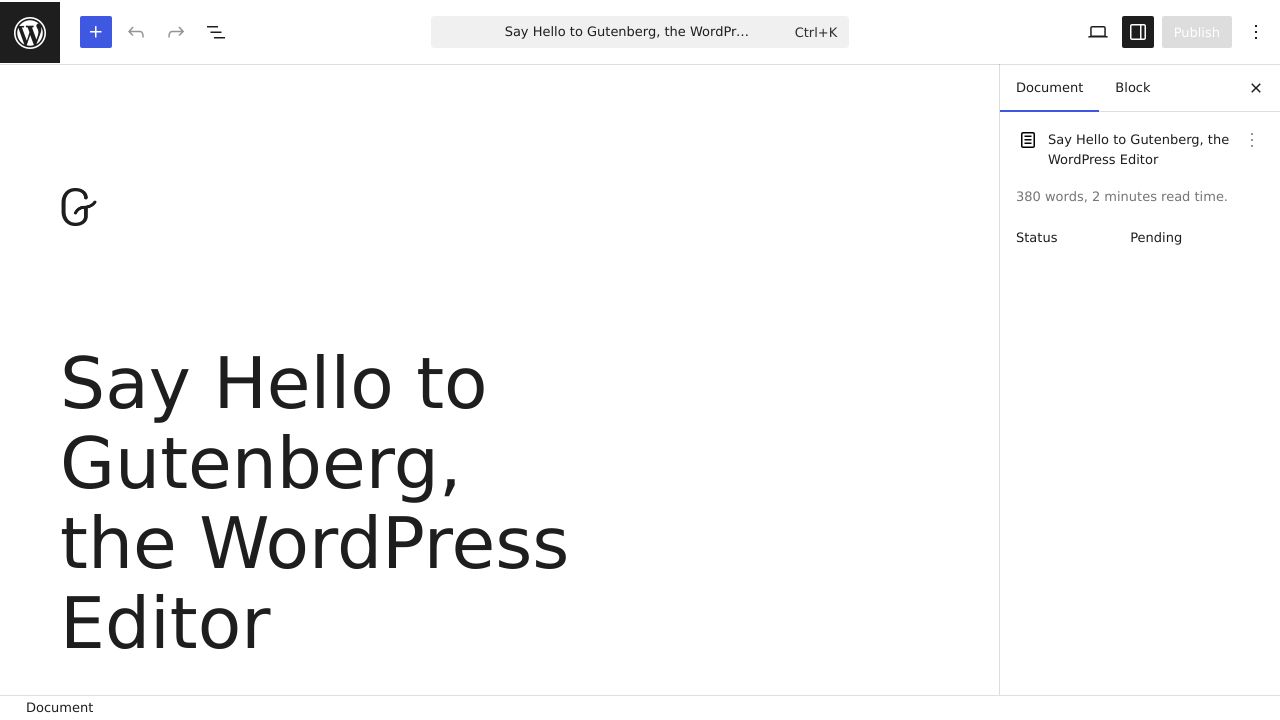
The editor automatically handles many technical aspects like responsive images and proper HTML structure. When you add a heading, WordPress uses the correct H2 or H3 tags. When you upload an image, it creates multiple sizes for different devices. These built-in features mean you can focus on content quality rather than technical implementation.
What's Changed in WordPress On-Page SEO for 2025
Search algorithms continue evolving, and 2025 brings some notable shifts. Core Web Vitals remain important ranking factors, measuring how fast your pages load and how stable they are during loading. WordPress has improved its handling of these metrics, but you still need to optimize your content choices.
Google's focus on helpful content has intensified. The search engine now better identifies content written primarily for users versus content created just to rank. This means your wordpress onpage seo strategy needs to prioritize genuine value and expertise over keyword stuffing.
Mobile-first indexing is now the standard. Google predominantly uses the mobile version of your content for ranking, so your WordPress site needs to work flawlessly on phones and tablets. The block editor makes this easier with responsive design built in.

Essential WordPress SEO Plugins and Setup
Before diving into specific optimizations, you'll want an SEO plugin installed. While WordPress handles basic SEO functions, dedicated plugins add features that make optimization much easier.
Choosing Your SEO Plugin: Yoast vs. Rank Math vs. All in One SEO
Yoast SEO is probably the most recognized name in WordPress SEO plugins. It offers a straightforward interface with traffic light indicators showing optimization status. The free version covers most basic needs, including title and meta description editing, XML sitemaps, and readability analysis.
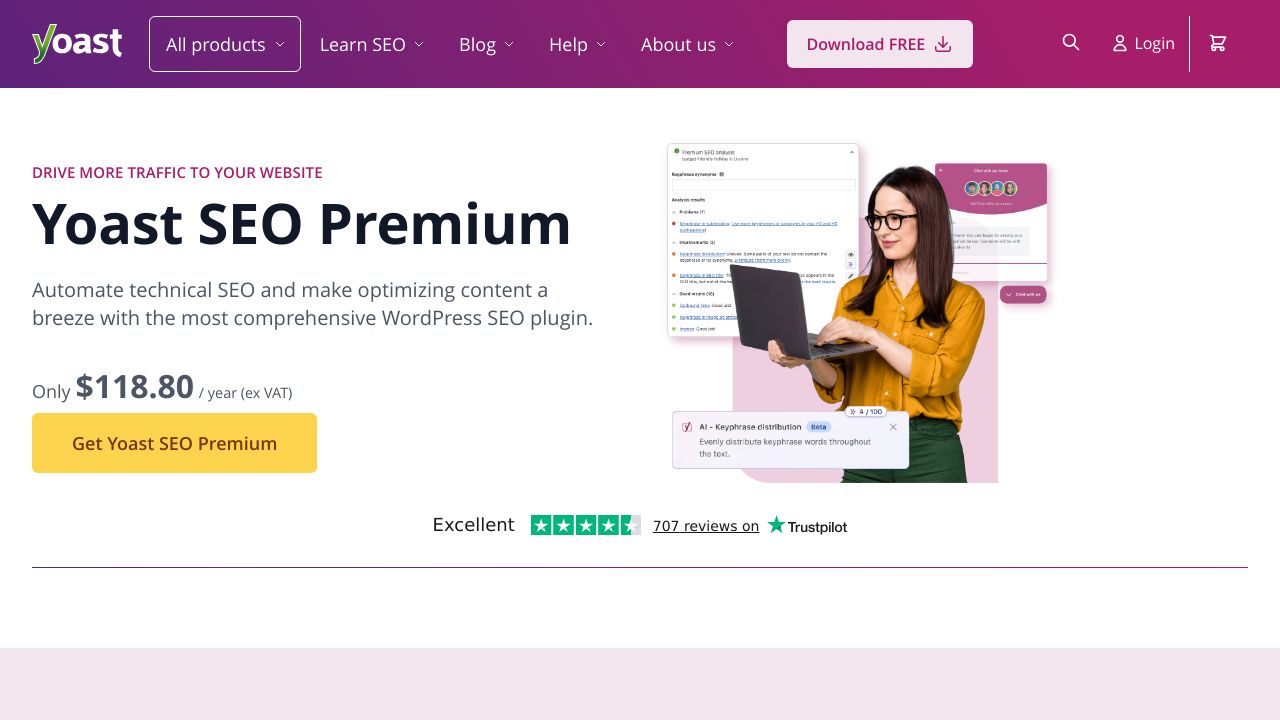
Rank Math has gained popularity for packing more features into its free version. You get schema markup options, keyword tracking for multiple terms, and more detailed SEO analysis. The interface can feel overwhelming at first, but it's powerful once you learn it.
All in One SEO sits somewhere between the two. It's user-friendly like Yoast but includes more advanced features in the free version. The setup wizard helps beginners get started quickly.
For most WordPress users, any of these three will work fine. Yoast is great if you want simplicity. Rank Math offers more features for free. All in One SEO provides a good balance. Pick one based on your comfort level with SEO concepts.
Initial Plugin Configuration and Settings
After installing your chosen plugin, run through the setup wizard. This typically asks about your site type (blog, business, portfolio), whether you're a person or organization, and your social media profiles. These details help the plugin configure schema markup correctly.
In the general settings, enable XML sitemaps. This creates a file that lists all your pages, making it easier for search engines to discover your content. Most plugins generate this automatically.
Configure your title and meta description templates. These control how your site name appears in search results and what default descriptions show if you don't write custom ones. A common format is: Post Title | Site Name.
Integrating Google Search Console and Analytics
Google Search Console shows how your site performs in Google search. You'll see which queries bring traffic, your average position, and any technical issues Google finds. Connect it by verifying site ownership through your SEO plugin or by adding a verification code to your site.
Submit your XML sitemap to Search Console after verification. This helps Google discover and index your pages faster. You'll find the sitemap URL in your SEO plugin settings, typically something like yoursite.com/sitemap.xml.
Content Optimization: Title Tags, Meta Descriptions, and Headers
These elements form the foundation of wordpress onpage seo. They tell search engines what your page is about and influence whether people click your result.
Crafting SEO-Optimized Title Tags in WordPress
Your title tag appears as the blue clickable link in search results. It's one of the most important on-page SEO elements. Keep it under 60 characters so it doesn't get cut off in search results.
Include your target keyword near the beginning of the title. If you're writing about vegan chocolate cake recipes, a title like "Vegan Chocolate Cake Recipe: Easy & Delicious" works better than "How to Make a Delicious Cake That's Vegan and Chocolate."
In WordPress, you'll edit title tags through your SEO plugin. Look for a meta box below your content editor labeled something like "Yoast SEO" or "Rank Math SEO." There's a field specifically for the SEO title, separate from your post title.
Writing Compelling Meta Descriptions That Drive Clicks
Meta descriptions don't directly affect rankings, but they influence click-through rates. This is the text snippet that appears below your title in search results. Keep it between 150-160 characters.
Write descriptions that accurately summarize your content while enticing clicks. Include your target keyword naturally. For that vegan cake article, you might write: "This vegan chocolate cake recipe is incredibly moist and rich. No eggs or dairy needed. Ready in 45 minutes with simple ingredients."
Add meta descriptions in the same SEO plugin meta box where you edited your title. There's a dedicated field for the meta description.
Header Tag Hierarchy (H1, H2, H3) and Implementation
Headers organize your content and help search engines understand your page structure. Your post title automatically becomes the H1 tag. You should only have one H1 per page.
Use H2 tags for main sections and H3 tags for subsections within those sections. Think of it like an outline: H1 is your title, H2s are your main points, and H3s are supporting details under those points.
In the WordPress block editor, add a heading block and select the appropriate level from the dropdown. Include keywords in your headers naturally, but prioritize clarity. A header like "How to Bake the Cake" is better than "Baking Instructions Section."
Optimizing Your Permalink Structure
Permalinks are your page URLs. Clean, descriptive URLs help both users and search engines understand your content. WordPress lets you customize these in Settings > Permalinks.
Choose the "Post name" structure for best results. This creates URLs like yoursite.com/vegan-chocolate-cake instead of yoursite.com/?p=123.
For individual posts, edit the permalink in the sidebar under the Document tab. Click the URL to edit it. Keep URLs short, include your target keyword, and use hyphens between words. Remove unnecessary words like "a," "the," or "and."
Content Quality and Keyword Optimization
Quality content is the backbone of effective wordpress onpage seo. Search engines have gotten much better at identifying genuinely helpful content versus thin, keyword-stuffed pages.
Keyword Research and Strategic Placement
Before you even type a single word, figuring out what people actually search for is paramount. It's not just about finding popular terms; it's about understanding the intent behind those searches. Tools like Google Keyword Planner remain useful for broad ideas, but for deeper insights, consider options like Answer the Public, which shows common questions, or more comprehensive platforms such as Ahrefs Keyword Generator, SEMrush Keyword Magic Tool, and Ubersuggest. For WordPress users, even free tools like the WPBeginner Keyword Generator can kickstart your idea generation.
Uncovering User Intent and Long-Tail Opportunities
Modern SEO goes beyond just matching keywords; it's about satisfying user intent. Are people looking for information, trying to buy something, or searching for a specific website? Understanding this helps you craft content that truly answers their needs. For instance, someone searching 'best running shoes for flat feet' has a different intent than 'buy Nike running shoes size 9'. Your content should align with that specific goal.
This focus on intent often leads to long-tail keywords – those longer, more specific phrases that might have lower search volume but often come with higher conversion rates. Think 'how to bake a gluten-free vegan chocolate cake' instead of just 'chocolate cake'. These phrases are less competitive and often bring in highly qualified visitors who know exactly what they're looking for. WordPress blogs, in particular, thrive on this kind of niche content.
Once you have your primary target keyword and a few related long-tail variations, it's time for strategic placement. Naturally weave your main keyword into your article's title, the very first paragraph, and at least one subheading. Don't stop there; sprinkle it throughout your content where it makes sense. The trick is to make it sound completely natural, as if you're just having a conversation. If you're writing about 'vegan chocolate cake', feel free to use variations like 'plant-based chocolate cake' or 'dairy-free chocolate cake' to keep things fresh and avoid sounding robotic. WordPress SEO plugins like Yoast SEO or Rank Math offer helpful prompts within the editor to guide your placement, often suggesting where to include your focus keyword and related phrases.
- Post Title: Your main keyword should ideally be at the beginning.
- Meta Description: Include your keyword to entice clicks from search results.
- First Paragraph: Introduce your topic with the keyword early on.
- Subheadings (H2, H3): Use keywords or variations to break up content and signal topic shifts.
- Image Alt Text: Describe your images using relevant keywords.
- URL/Permalink: Keep it short, descriptive, and keyword-rich.
- Throughout the Body: Distribute naturally, focusing on readability.
- Last Paragraph: A gentle reminder of the topic can be useful.
Most WordPress SEO plugins will give you feedback on your keyword usage, sometimes even showing a 'density' score. However, chasing a specific percentage is a dated approach. The real goal is natural language. If your content feels forced or awkward when you read it aloud, you're probably overdoing it. Prioritize readability and a smooth user experience above all else. Search engines are smart enough to understand context and synonyms, so write for humans first.
Content Length and Depth for SEO Success
There's no magic word count, but comprehensive content tends to rank better. A 300-word post rarely covers a topic thoroughly enough to satisfy searchers. Most well-ranking articles fall between 1,500-2,500 words.
Focus on covering your topic completely rather than hitting a word count. If you can fully answer the search query in 800 words, that's fine. If it takes 3,000 words to be comprehensive, write 3,000 words.
WordPress shows your word count at the top of the editor. Use this to gauge whether you've covered enough ground, but let the topic guide you more than the number.
Using LSI Keywords and Semantic SEO
LSI (Latent Semantic Indexing) keywords are terms related to your main keyword. For a post about vegan chocolate cake, LSI keywords might include "cocoa powder," "plant-based desserts," "egg substitutes," and "dairy-free frosting."
Including these related terms helps search engines understand your content's context. You don't need to research LSI keywords specifically. Just write naturally about your topic, and you'll include them automatically.
Content Readability and User Experience
Readable content keeps people on your page longer, which signals quality to search engines. Break up long paragraphs into shorter ones. Use bullet points and numbered lists for easy scanning.
In WordPress, add list blocks for bullet points or numbered lists. Use the paragraph block for text, but keep paragraphs to 3-4 sentences maximum. Add images between sections to create visual breaks.
Most SEO plugins include readability analysis. They'll flag issues like long sentences, passive voice, or difficult words. While you don't need to fix every suggestion, aim for a readability score that matches your audience's level.
Image and Media Optimization
Images make your content more engaging, but they can also slow down your site if not optimized properly. This affects both user experience and search rankings.
Image SEO: Alt Text, File Names, and Compression
Alt text describes your images for screen readers and search engines. It's crucial for accessibility and helps your images appear in Google Image Search. Write descriptive alt text that explains what's in the image.
For a photo of a chocolate cake on a plate, good alt text might be "vegan chocolate cake with chocolate frosting on white plate." Bad alt text would be "image1" or "cake."
Add alt text in WordPress by clicking on an image block and finding the alt text field in the sidebar settings. Before uploading images, rename files descriptively. Use "vegan-chocolate-cake.jpg" instead of "IMG_1234.jpg."
Compress images before uploading to reduce file size. Tools like TinyPNG or plugins like Imagify can shrink image files by 50-80% without visible quality loss.
Using WebP Format and Lazy Loading
WebP is an image format that's typically 25-35% smaller than JPEG or PNG files. Many WordPress plugins can automatically convert your images to WebP format. This speeds up page loading without sacrificing quality.
Lazy loading delays loading images until users scroll near them. WordPress enables this by default for images, but you can verify it's working by checking your image blocks. This feature significantly improves initial page load times.
Internal Linking and Site Structure
Internal links connect your pages together, helping search engines discover content and understand your site's structure. They also keep visitors engaged by guiding them to related content.
Creating an Effective Internal Linking Strategy
Link to related content naturally within your posts. If you mention a topic you've covered elsewhere, link to that article. Aim for 3-5 internal links per post, though this varies based on content length.
Use descriptive anchor text (the clickable words) that tells readers what they'll find. Instead of "click here," use "learn how to make vegan frosting" or "see our guide to plant-based baking."
Adding Internal Links in the WordPress Editor
Highlight the text you want to link, then click the link icon in the toolbar or press Ctrl+K (Cmd+K on Mac). Start typing the title of the post you want to link to, and WordPress will show matching posts. Select the right one and press Enter.
You can also paste a URL directly. The WordPress editor makes internal linking quick and doesn't require you to remember exact URLs.
Category and Tag Optimization
Categories organize your content into broad topics. Tags describe specific details. For a food blog, you might have categories like "Desserts," "Main Courses," and "Appetizers." Tags might include "vegan," "gluten-free," "quick recipes," etc.
Assign categories and tags in the Document sidebar under the Post tab. Choose one primary category per post and 3-5 relevant tags. Don't create too many categories or tags, as this can dilute your site structure.
Technical On-Page SEO Elements
These technical elements might seem complex, but WordPress and SEO plugins handle much of the heavy lifting.
Schema Markup and Structured Data Implementation
Schema markup is code that helps search engines understand your content type. It can enable rich results like recipe cards, FAQ dropdowns, or review stars in search results.
Most SEO plugins include schema options. In Rank Math or Yoast, you'll find schema settings in the post editor. Select the appropriate schema type (Article, Recipe, FAQ, etc.) and fill in the required fields.
Mobile Optimization and Responsive Design
WordPress themes are typically responsive by default, meaning they adapt to different screen sizes. You can preview how your content looks on mobile by clicking the preview button and selecting "Mobile" or "Tablet."
Test your pages on actual mobile devices too. Sometimes elements that look fine in preview don't work well in practice. Make sure buttons are easy to tap, text is readable without zooming, and images don't overflow the screen.
WordPress On-Page SEO Checklist and Action Plan
Here's a practical checklist you can follow for every post you publish.
Pre-Publishing SEO Checklist
- Target keyword identified and researched
- Title tag optimized (under 60 characters, keyword included)
- Meta description written (150-160 characters)
- URL slug edited to be short and descriptive
- H1 tag is your post title (automatic in WordPress)
- H2 and H3 headers used to structure content
- Target keyword appears in first paragraph
- Content is comprehensive (typically 1,500+ words)
- Images compressed and optimized
- Alt text added to all images
- 3-5 internal links to related content
- External links to authoritative sources (if relevant)
- Content is readable (short paragraphs, lists, clear language)
- Categories and tags assigned
- Schema markup configured (if applicable)
- Mobile preview checked
Common WordPress On-Page SEO Mistakes to Avoid
Don't stuff keywords unnaturally into your content. Search engines are sophisticated enough to recognize this, and it makes your content unreadable. Write for humans first.
Don't neglect image optimization. Large, uncompressed images are one of the biggest causes of slow page speeds. Always compress before uploading.
Don't use the same title tag and meta description for multiple pages. Each page should have unique metadata that accurately describes its specific content.
Don't skip internal linking. Many WordPress users forget to link to their older content, which means search engines might not discover those pages and visitors won't find related articles.
Measuring Your On-Page SEO Success
Track your progress in Google Search Console. Look at impressions (how often your pages appear in search), clicks, and average position. If you're doing wordpress onpage seo correctly, these numbers should improve over time.
Monitor page load speed using Google PageSpeed Insights. Your Core Web Vitals scores directly impact rankings, so keep an eye on these metrics.
Check your organic traffic in Google Analytics. Filter by landing pages to see which posts are bringing in the most visitors from search engines. This tells you what's working and what needs improvement.
SEO takes time. Don't expect overnight results. Most pages take 3-6 months to reach their full ranking potential. Keep creating quality content, follow this checklist, and you'll see steady improvement in your search visibility.