
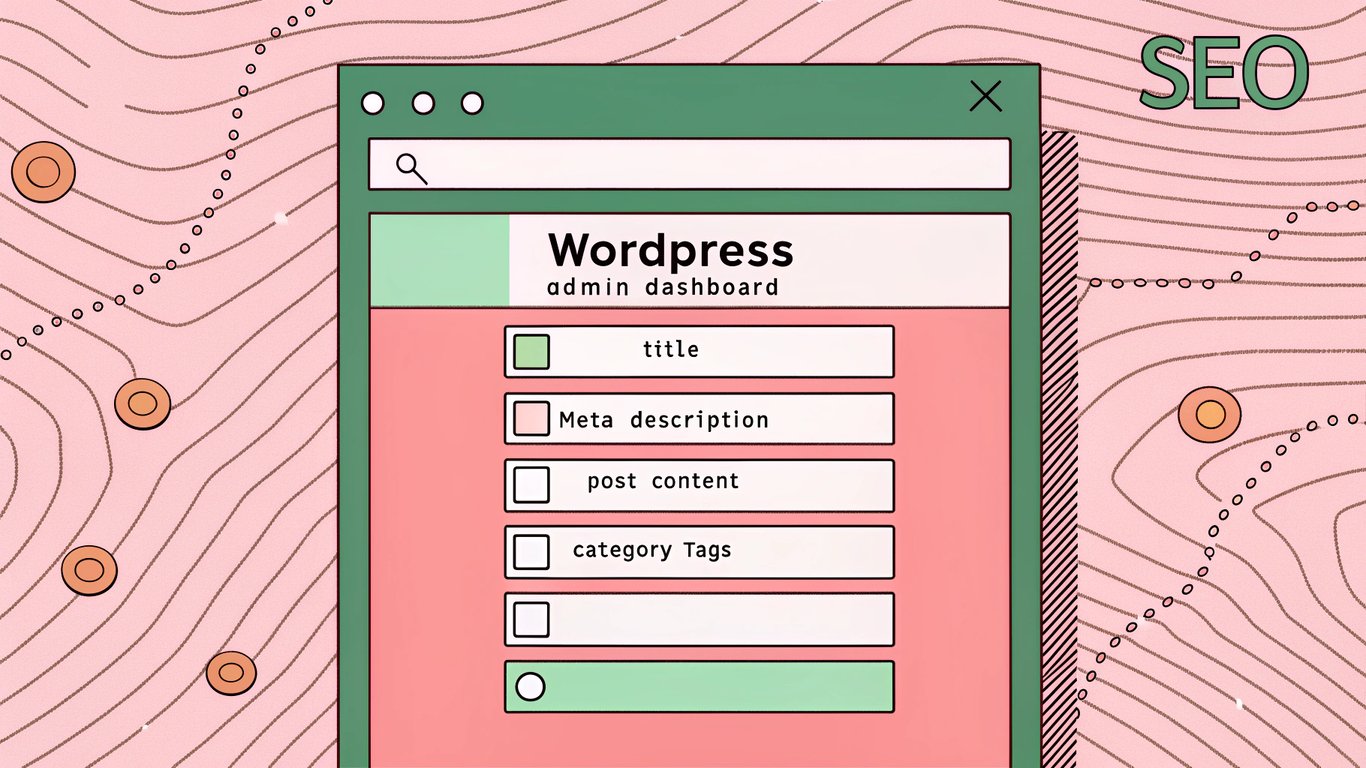
You've probably heard that keywords matter for SEO. But knowing where to add keywords in WordPress? That's where most people get stuck.
I've been optimizing WordPress sites for years, and I can tell you this: placement matters just as much as the keywords themselves. Search engines don't just look for keywords; they look for them in specific places that signal what your content is actually about.
Think of it like this. If you're writing a research paper, you don't bury your thesis statement on page seven. You put it right up front where it belongs. Same principle applies to WordPress SEO.
How Search Engines Read WordPress Sites
Google's crawlers don't read your WordPress site the way humans do. They follow a hierarchy, starting with your title tags and headings, then moving through your content structure.

WordPress makes this easier because it's built with clean HTML structure. Your H1 becomes your page title. Your H2s and H3s create a clear content outline. Your permalink structure tells search engines what the page is about before they even read the content.
But here's the thing: WordPress gives you the framework, but you still need to fill it in correctly. That's what this guide is for.
Keyword Stuffing vs. Strategic Placement
Let's clear something up right away. Strategic keyword placement isn't about cramming your target phrase into every possible location. That's keyword stuffing, and it'll hurt your rankings more than help them.
Modern SEO is about natural language and user intent. When I say "add keywords," I mean incorporating them where they make sense and provide value to readers. If it sounds awkward or forced, you're doing it wrong.
Essential Keyword Placement Within WordPress Posts
These are the core locations where keywords have the biggest impact on your WordPress content. Master these first before moving to advanced techniques.
Post Title: Your Primary SEO Signal
Your post title is the single most important place for your primary keyword. It's what shows up in search results, browser tabs, and social shares.
In WordPress, you'll find this at the top of your post editor. Keep it under 60 characters so it doesn't get cut off in search results. And try to put your main keyword toward the beginning when possible.
For example, instead of "A Complete Guide to Understanding Where You Should Add Keywords in WordPress," go with "Where to Add Keywords in WordPress: Complete Guide." Same information, better optimization.
URL Slug: Creating SEO-Friendly Permalinks
Right below your title in the WordPress editor, you'll see the permalink. This is your URL slug, and it's another critical keyword location.
Click "Edit" next to the permalink and create a short, keyword-rich URL. Remove unnecessary words like "a," "the," and "to." If your post is about WordPress keyword placement, your slug should be something like "wordpress-keyword-placement" or "where-add-keywords-wordpress."
Keep it simple. Search engines and users both prefer clean URLs.
Headings: Structuring Content with Keywords
Your H2 and H3 headings create the structure of your content. They're also prime real estate for keyword variations and related terms.
In the WordPress block editor, you can set heading levels for any block. Use H2s for main sections and H3s for subsections. Don't skip levels (like going from H2 to H4).
Include your primary keyword in at least one H2, but don't force it into every heading. Use variations and related phrases in other headings to show topical relevance.
First Paragraph: The Critical Opening
Get your main keyword into the first 100 words of your content. This signals to search engines (and readers) what your post is about right from the start.
But don't just drop it in awkwardly. Make it part of a natural introduction that hooks readers and sets up what they'll learn. The opening of this article is a good example; I mentioned keyword placement naturally while explaining why it matters.
Body Content: Natural Distribution
Throughout your main content, use your primary keyword and variations naturally. There's no magic number for keyword density; focus on writing helpful content and the keywords will appear naturally.
Include related terms and synonyms. If you're writing about WordPress SEO, you'll naturally mention things like "search engine optimization," "rankings," "organic traffic," and "search visibility." These semantic keywords help search engines understand your topic comprehensively.
Image File Names and Alt Text
Before uploading images to WordPress, rename the files with descriptive, keyword-rich names. Instead of "IMG_1234.jpg," use "wordpress-keyword-placement-example.jpg."
After uploading, add alt text in the image settings. This serves two purposes: accessibility for screen readers and SEO value. Describe what's in the image and include relevant keywords when it makes sense.
For example: "Screenshot showing where to add keywords in WordPress post editor" is better than just "WordPress screenshot."
Meta Description: Your Search Result Preview
Most WordPress sites use an SEO plugin like Yoast SEO, Rank Math, or All in One SEO. These plugins add a meta description field below your content editor.
Write a compelling 150-160 character description that includes your primary keyword and entices people to click. This doesn't directly impact rankings, but it affects click-through rates, which do matter.
WordPress SEO Plugin Settings for Keywords
SEO plugins add extra fields and settings where you can optimize keyword placement. Here's where to find them and how to use them effectively.
Focus Keyword Field
In Yoast SEO, Rank Math, and similar plugins, you'll find a "Focus Keyword" or "Target Keyword" field. Enter your primary keyword here, and the plugin will analyze how well you've optimized your content for that term.
Some plugins let you add multiple focus keywords. Use this for closely related variations, but don't go overboard. One primary keyword and maybe one or two secondary keywords is plenty.
SEO Title Customization
Your SEO title can be different from your post title. Most plugins let you customize this with variables like site name, post title, and separators.
The default template usually works fine, but you can adjust it if needed. Just make sure your primary keyword appears in the final SEO title that shows in search results.
Schema Markup and Structured Data
Advanced SEO plugins let you add schema markup for things like FAQs, how-to guides, and articles. When you fill in these schema fields, include relevant keywords naturally in your answers and descriptions.
This helps search engines understand your content better and can lead to rich snippets in search results.
Site-Wide WordPress Settings for Keywords
Beyond individual posts, WordPress has site-wide settings where strategic keyword placement strengthens your overall SEO.

Site Title and Tagline
Go to Settings > General in your WordPress dashboard. Your site title and tagline appear across your entire site and in search results for your homepage.
Include your primary business keyword in one or both of these fields. For example, "Smith Photography" could become "Smith Photography | Professional Wedding Photographer in Austin."
Category Names and Descriptions
Categories create archive pages that can rank in search results. Name your categories with keywords in mind, and fill in the category descriptions with keyword-rich content.
Instead of a category called "Tips," use "WordPress SEO Tips." Then write a 2-3 paragraph description explaining what readers will find in that category.
Tag Strategy
Tags work similarly to categories but should be more specific. Use them for keyword variations and related terms.
Don't go crazy with tags. Pick 3-5 relevant tags per post that represent specific topics or keywords you want to rank for. Too many tags dilute your SEO value and create thin content pages.
Menu Navigation Labels
Your navigation menu appears on every page of your site. Use descriptive, keyword-rich labels instead of generic ones.
Instead of "Services," use "SEO Services" or "WordPress Development." Instead of "About," consider "About Our Agency." These small changes add up across your entire site.
Advanced Keyword Placement Locations
Once you've mastered the basics, these advanced locations can give you an extra edge in competitive niches.
Internal Link Anchor Text
When linking between posts on your site, use keyword-rich anchor text. Instead of "click here" or "read this post," use descriptive phrases like "learn about WordPress keyword placement" or "our guide to on-page SEO."
This helps search engines understand what your linked pages are about and passes SEO value between related content.
Excerpt Field
In the WordPress editor, look for the Excerpt panel (you might need to enable it in Screen Options). This field controls what appears on archive pages and in some themes' layouts.
Write a custom excerpt that includes your primary keyword and summarizes your post in 1-2 sentences. Don't leave this blank; WordPress will auto-generate an excerpt that might not include your keywords.
Author Bio
Your author bio appears on author archive pages and sometimes at the end of posts. Include relevant expertise keywords that relate to your content topics.
For example: "Sarah writes about WordPress SEO, content marketing, and website optimization for small businesses." This helps establish topical authority.
Keyword Placement Checklist and Best Practices
Here's a practical checklist you can use for every WordPress post you publish. Not every item will apply to every post, but this covers the essential locations.
Your WordPress Keyword Placement Checklist
- Primary keyword in post title (preferably near the beginning)
- Keyword-rich URL slug (short and descriptive)
- Primary keyword in first 100 words
- Keyword in at least one H2 heading
- Keyword variations in other H2/H3 headings
- Natural keyword distribution throughout body content
- Keyword in meta description
- Descriptive image file names with keywords
- Alt text for all images with relevant keywords
- Focus keyword set in SEO plugin
- Custom excerpt with primary keyword
- Relevant categories and tags selected
- Internal links with keyword-rich anchor text
Balancing Keywords with Readability
The biggest mistake I see is people sacrificing readability for keyword placement. Your content needs to sound natural and provide value to readers first.
If you're struggling to fit a keyword somewhere, it probably doesn't belong there. Use variations, synonyms, or related terms instead. Search engines are smart enough to understand context and semantic relationships.
Common Mistakes to Avoid
Watch out for these keyword placement mistakes that can hurt your SEO:
- Keyword stuffing: Forcing keywords into every sentence makes content unreadable and triggers spam filters
- Ignoring user intent: Placing keywords without considering what searchers actually want to find
- Using exact match only: Failing to include variations and related terms limits your ranking potential
- Neglecting mobile optimization: Titles and descriptions that work on desktop might get cut off on mobile
- Forgetting about images: Missing opportunities in file names and alt text
- Inconsistent category structure: Creating too many categories or using non-descriptive names
Tools for Tracking Keyword Performance
After optimizing your keyword placement, you'll want to track results. Google Search Console is free and shows which keywords your pages rank for and how often they appear in search results.
Most SEO plugins also include tracking features. Rank Math has a built-in rank tracker, and Yoast integrates with various analytics tools.
For more detailed analysis, tools like Ahrefs or SEMrush can show you exactly where you rank for specific keywords and how your placement strategy is performing.
Putting Your Keyword Map Into Action
Now you know where to add keywords in WordPress. The key is implementing this systematically rather than trying to optimize everything at once.
Start with High-Impact Locations
If you're optimizing existing content, focus on these five locations first:
- Post titles and URL slugs
- First paragraph of each post
- H2 headings throughout content
- Meta descriptions
- Image alt text
These give you the biggest SEO boost for the least amount of effort. Once you've tackled these, move on to site-wide settings and advanced locations.
Building a Sustainable Workflow
Create a simple workflow for new content. Before you hit publish, run through your keyword placement checklist. It takes maybe five extra minutes but makes a significant difference in your SEO results.
For existing content, audit your top-performing posts first. These already have some SEO momentum, so optimizing their keyword placement can push them even higher in search results.
Remember, SEO is a long-term game. You won't see results overnight, but consistent, strategic keyword placement across your WordPress site will compound over time. Focus on creating genuinely helpful content, place your keywords thoughtfully, and the rankings will follow.